Platform Overview
This platform provides two integrated modules for managing your organization's security posture:
- TPRM (Third Party Risk Management) — Track, assess, and score your vendors and suppliers. Understand the security risk each vendor poses to your organization.
- GRC (Governance, Risk & Compliance) — Manage compliance frameworks (SOC 2, ISO 27001, PCI DSS, NIST CSF, CMMC, HIPAA, CIS Controls, and more), answer a single unified questionnaire that covers all frameworks simultaneously, track internal controls, upload evidence, manage policies, and run audits.
Administrators also have access to the Admin Portal for system configuration, user management, integrations, and maintenance.
User Roles & Permissions
Users are assigned to one or more ACL Groups that determine what they can see and do. An administrator assigns groups via → → Groups button.
| Group | What You Can Do |
|---|---|
| Administrator | Full access to everything — all modules, admin settings, user management, and system configuration |
| Cyber TPRM | Full access to the TPRM module — create/edit/delete vendors, run assessments, FAIR analysis, scoring |
| Cyber GRC | Full access to the GRC module — manage frameworks, run assessments, upload evidence, manage policies, run audits, manage risks |
| GRC Contributors | Limited GRC access — complete assigned tasks, provide evidence, answer assigned assessment questions |
| Auditor | Read-only access to both TPRM and GRC modules — can view everything, download evidence, and generate reports, but cannot create, edit, or delete |
| Procurement | Create and manage vendor onboarding requests, upload vendor documents |
| Stakeholder | View their own vendor requests and respond to tasks assigned to them |
Your First Login
- Open your web browser and navigate to your platform URL (e.g.,
https://tprm.yourcompany.com). - Enter your Username and Password provided by your administrator.
- If two-factor authentication (TOTP) is enabled for your account, open your authenticator app (Google Authenticator, Microsoft Authenticator, etc.) and enter the 6-digit code when prompted.
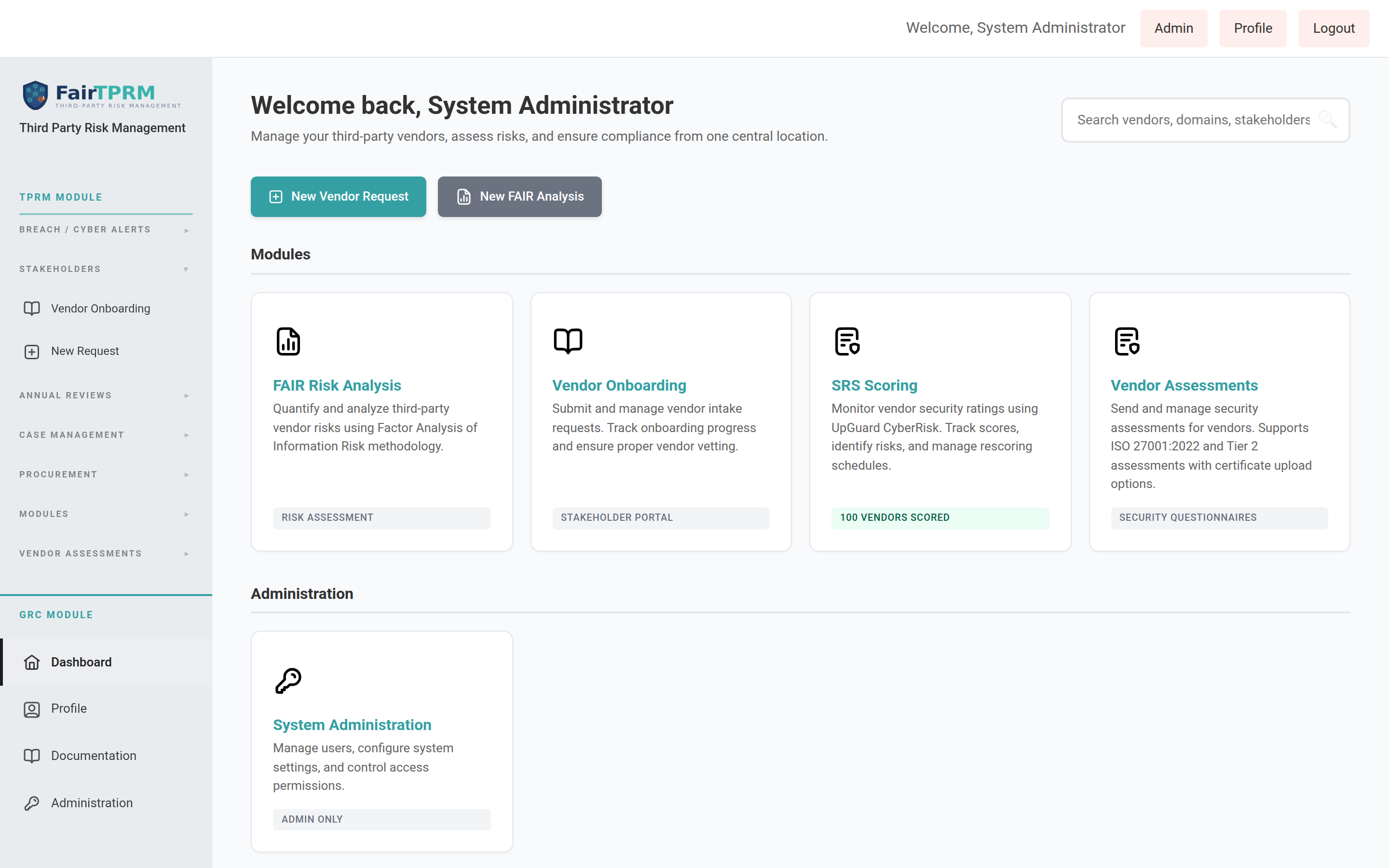
- You will land on the Dashboard. The top bar shows "Welcome, [Your Name]" with links to Admin (if you are an administrator), Profile, and Logout.
- Look at the left sidebar. If you are in the Cyber GRC or Administrator group, you will see in the sidebar. Click it to expand the GRC navigation.
What's New in Version 2.6.2
Version 2.6.2 adds several features focused on vendor onboarding, procurement collaboration, multi-language support, and shadow-SaaS discovery. If you have used an earlier version, here is what is new. Each item links to its full walkthrough later in this guide.
| New Feature | What It Does | Who It's For |
|---|---|---|
| Language settings | Use the platform in 8 languages. Each person picks their own language; admins choose which languages are available. | Everyone |
| Procurement Onboarding & Vendor ID | A vendor must be onboarded through procurement and have a valid Vendor ID (VID) before it can be submitted for cyber review. | Procurement, Stakeholders |
| AI Review for vendors | A dedicated review status for vendors whose services use AI, plus a "Force AI Review" action. | Cyber TPRM, Admins |
| Procurement Cyber Status | A live page showing vendors in review, with a running history of updates the cyber team shares with procurement, plus a weekly email digest. | Procurement, Cyber TPRM |
| Grip Shadow SaaS integration | Automatically discover SaaS apps used across your organization and pull them into the Shadow SaaS list. | Admins |
| Hero Shadow SaaS integration | An alternative Shadow SaaS provider: discover vendors and security issues from HERO Security and feed them into the same Shadow SaaS list. Grip and Hero are mutually exclusive — use one or the other. | Admins |
| Zscaler blocking | Block an unsanctioned app's web domain directly in Zscaler with one click. | Admins |
| In-app upgrades | Check your registry for a newer version and upgrade from inside the Admin Portal. | Admins |
| Phone & VAT question types | New assessment/onboarding field types: a phone number with a country-code & flag picker (auto-formatted), and an EU VAT number with double entry and free live validation against the official EU VIES service. | Everyone |
| Vendor data & search improvements | Store a VAT number on each vendor (shown on the vendor page with an "Add VAT" shortcut), find vendors by VAT number in the quick search, and a clearer Procurement-Onboarding scoring banner. | Procurement, Cyber TPRM |
| Large database backups | Backup and restore now support multi-gigabyte databases and very large records without timing out. | Admins |
| Assessment forms & AI Auto-Fill | Download an assessment as a fillable PDF or Excel workbook, import a completed file back, and — with an AI provider — auto-fill answers from the vendor's current certificates. | Cyber TPRM, Admins |
| Vendor Action Plan | Schedule follow-up actions against a vendor (contact, send assessment, force annual review) with due dates, owners, email alerts, and status notes. | Cyber TPRM, Admins |
| Custom onboarding fields & Custom Data | Capture extra, org-specific fields on a vendor with per-role visibility, edit them on the Custom Data tab, and read them in the CSV export and API. | Admins, Cyber TPRM |
| Breach / Cyber Alerts | A supply-chain breach feed (including Grip incidents) with an affected-users drill-down and bulk acknowledge / false-positive / delete. | Cyber TPRM, Admins |
| Custom access-control groups | Create your own ACL groups, clone permissions from an existing group, and set Read vs Read/Write per module. The shipped groups are protected. | Admins |
| Assessment Template Builder | New question types (multi-select, phone, VAT), template-driven certificate instructions, per-role field gating, and deactivated templates hidden by default. | Admins, Cyber TPRM |
Changing Your Language New in 2.6.2
The platform interface can be displayed in 8 languages. Every person chooses their own language — changing it only affects your screen, not anyone else's. Your choice is remembered every time you log in.
Languages available
| Language | Shown in the menu as |
|---|---|
| English | English |
| Spanish | Español |
| Italian | Italiano |
| Ukrainian | Українська |
| Chinese (Simplified) | 中文(简体) |
| Hindi | हिन्दी |
| French | Français |
| Portuguese | Português |
Only the languages your administrator has turned on will appear in your list. English is always available and cannot be turned off.
How to change your language (step by step)
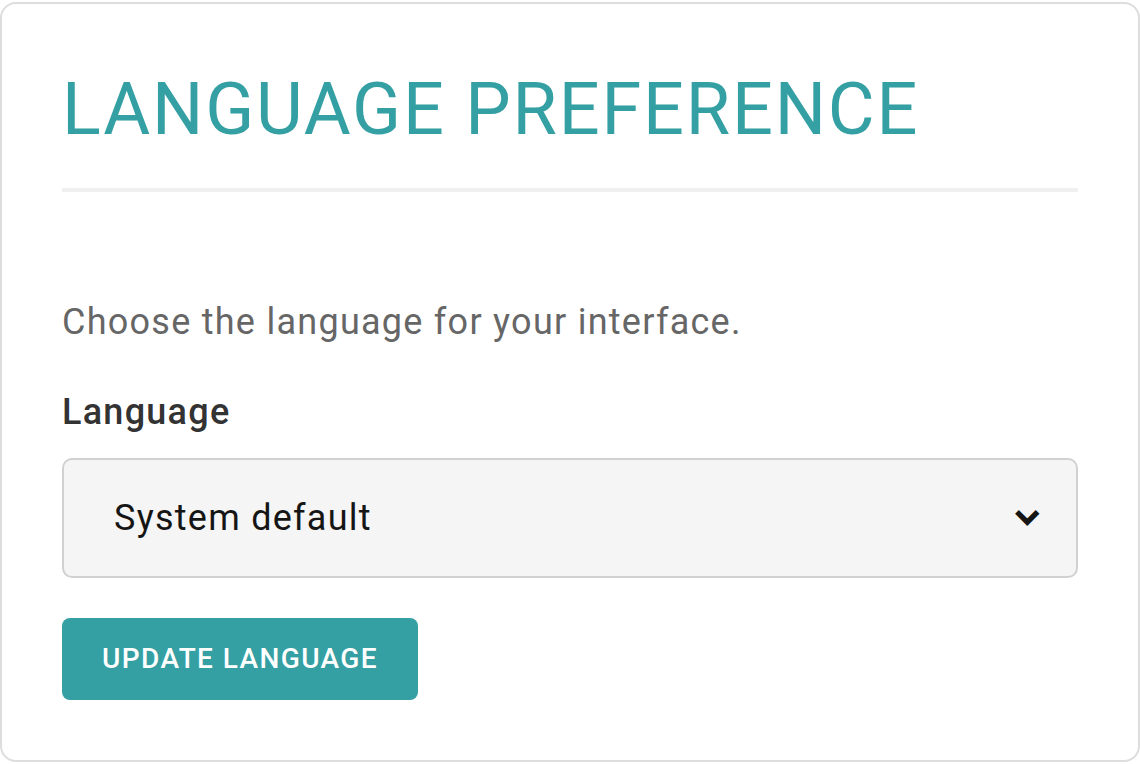
- Click in the top-right corner of any page.
- On the Profile page, scroll down to the Language Preference card.
- Click the Language drop-down and choose your language. To go back to the language your administrator set for everyone, choose System default.
- Click Update Language. The page reloads and the menus, buttons, and labels now appear in your chosen language.
For administrators: choosing which languages are available
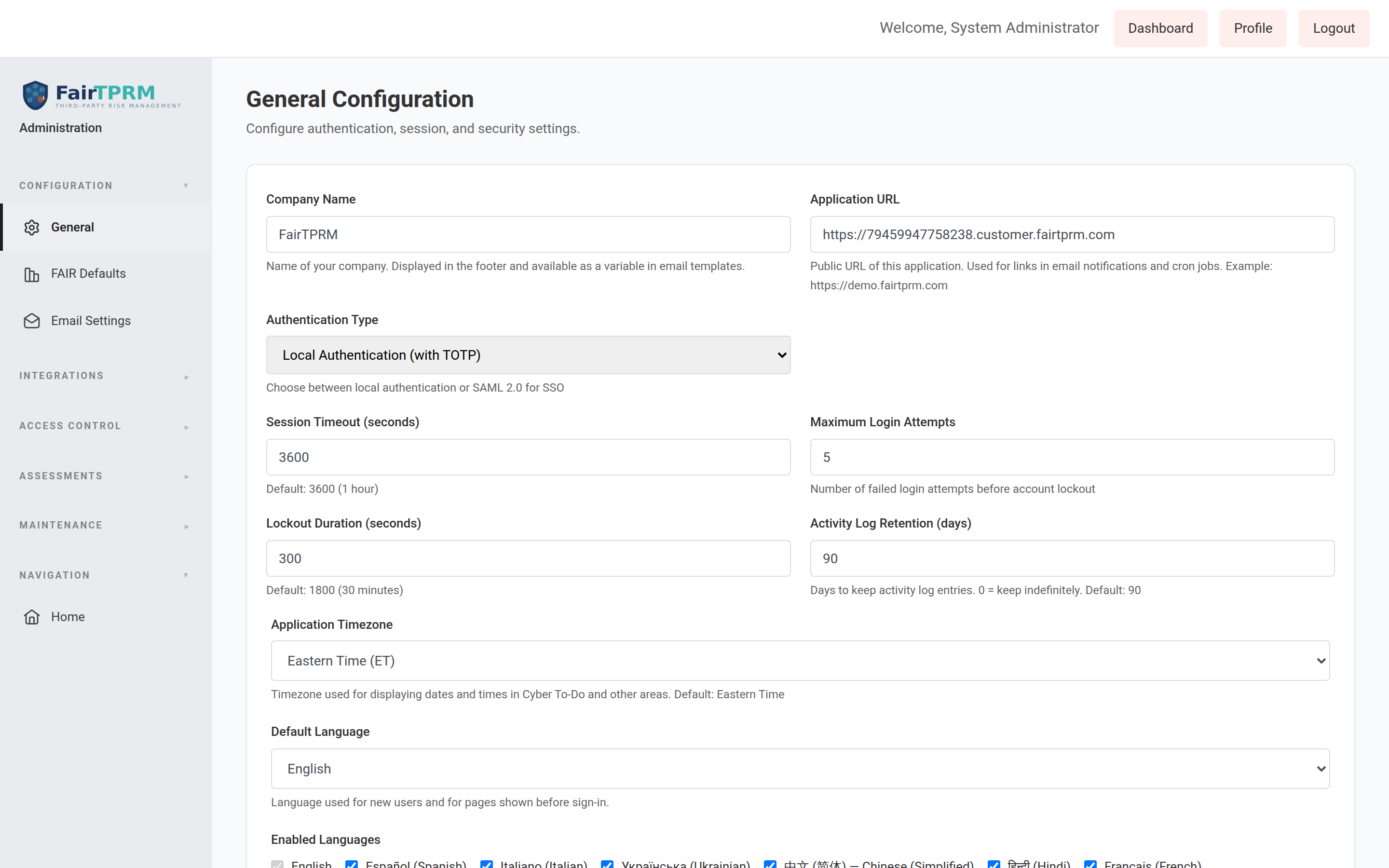
Administrators decide the default language (used for brand-new users and for the sign-in page before anyone logs in) and which languages everyone is allowed to pick.
- Go to → .
- Find the Default Language drop-down and choose the organization-wide default.
- Under Enabled Languages, tick the languages you want to make available. (English is always ticked and cannot be disabled.)
- Click Save Configuration.
Phone & VAT Question Types New in 2.6.2
The Template Builder ( → ) gains two new question types that capture contact and tax details in a clean, consistent format. They can be used on any assessment or onboarding template, and like other questions they can be mapped to a vendor field so the answer flows onto the vendor record.
Phone
The Phone type shows a country selector with a flag and dialing code next to the number box. The United States is listed first; every other country follows in alphabetical order. Whatever format the person types — 314-444-5544, (314) 444-5544 or 3144445544 — the number is stored in one uniform international format (for example, picking the US flag and typing 3144445544 stores +13144445544). The default Vendor Onboarding Request form now uses this type for the primary contact's phone number, and the assessment attestation phone field uses it too.
VAT (EU VAT number)
The VAT type is for European VAT numbers. To guard against typos it must be entered twice, and the two entries must match before it is saved. The number is stored in a consistent form (uppercase, no spaces or punctuation — for example DE123456789).
- Free live validation. When you finish typing, the platform checks the number against the official EU VIES service (the European Commission's VAT Information Exchange System). VIES is free, needs no account, and reflects each member state's live registry.
- Advisory, never blocking. If VIES cannot confirm the number, it is still saved — a notice simply asks you to double-check it. If VIES is momentarily slow or a country's registry is temporarily unavailable, the number is saved and you are told to verify it later.
- Details on demand. When VIES confirms a number, an information (ⓘ) button appears next to it. Clicking it opens a panel showing the registered company name and address returned by VIES.
vat_number field is available, so a VAT question mapped to it stores the value on the vendor. When you choose the VAT question type in the Template Builder, this mapping is selected for you automatically.
VAT on the vendor page
The vendor's VAT number is shown in the Vendor Information card on the vendor onboarding page. If no VAT is on file, an “+ Add VAT” button appears that jumps straight into edit mode with the VAT field focused.
Finding vendors by VAT number
The quick search box in the top-right of the platform now also matches on VAT number, alongside vendor name, domain, and stakeholder. Direct matches on a vendor's own name, domain, or VAT number are always shown first.
Procurement Onboarding scoring banner New in 2.6.2
When a vendor's Procurement Onboarding status is set to No, a banner now makes clear that automated vendor scoring is disabled until the vendor completes Procurement Onboarding. It appears both on the vendor onboarding page and beneath the matching assessment question, and updates immediately as the answer changes.
Submitting an assessment: required fields checked first New in 2.6.2
When a vendor clicks Submit on an assessment, the platform now checks that every required question is answered before asking for the submitter's attestation details. Previously a missing answer was only reported after the attestation was filled in, forcing it to be re-entered.
Large Database Backups & Restores New in 2.6.2
Backup and restore ( → ) now handle multi-gigabyte databases and individual records approaching 1 GB without the operation being cut short by a timeout or running out of memory. Behind the scenes the database packet limit, network timeouts, upload size, and request time limits were all raised to accommodate very large data.
GRC Module: What is Governance, Risk & Compliance?
GRC stands for Governance, Risk, and Compliance. It is the practice of ensuring your organization meets regulatory requirements, follows security best practices, manages risks, and can prove compliance to auditors and regulators.
The GRC module helps you:
- Assess your security maturity using a single unified questionnaire that maps to multiple compliance frameworks simultaneously
- Track compliance against SOC 2, ISO 27001, PCI DSS, NIST CSF, CMMC, HIPAA, CIS Controls, and more
- Manage internal controls — document the security measures your organization has implemented
- Collect and store evidence — upload screenshots, configuration exports, policy documents, and certificates that prove compliance
- Manage policies — create, version, approve, and publish organizational security policies
- Run audits — plan audits, record findings, assign remediation, and track closure
- Track risks — maintain a risk register with likelihood/impact scoring and treatment plans
- Monitor continuously — set up automated checks that verify compliance controls on a schedule
Getting Started with GRC — Quick Start Guide
If you are brand new to the GRC module, follow these steps in order. By the end, you will have a completed compliance assessment with scores across all frameworks.
• You must be logged in as a user in the Administrator or Cyber GRC group
• You must be able to see in the left sidebar
• If you do not see it, ask your administrator to assign you to the Cyber GRC group (Admin → Users → click Groups button next to your name → check "Cyber GRC" → Save)
The recommended workflow is:
- Create an Assessment — This defines the scope and purpose of your compliance review
- Answer the Questions — Work through the 146 unified questions, rating your maturity level for each
- Upload Evidence — Attach documents, screenshots, and files that prove your answers
- View Your Scores — Check your compliance percentages on the Frameworks page
- Generate Reports — Create detailed per-framework compliance reports for auditors
Each step is explained in detail below.
Step 1: Create Your First Assessment
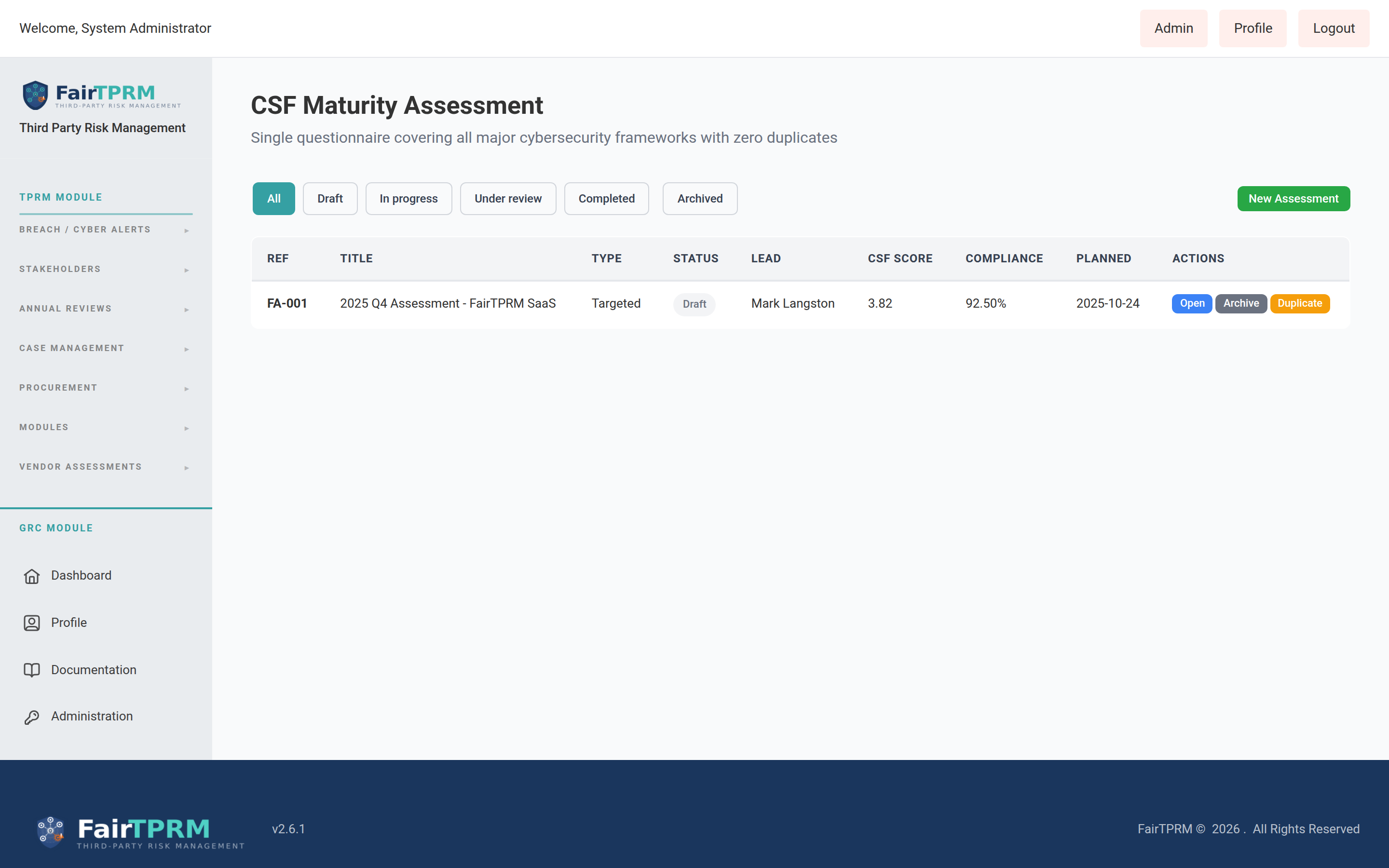
An Assessment is a compliance review of your organization. It represents a point-in-time evaluation where you answer security questions, record maturity ratings, and collect evidence. Think of it as a "compliance snapshot."
How to Create a New Assessment
- In the left sidebar, click to expand it.
- Click the section to expand it.
- Click . This opens the main assessment page.
- At the top of the page, you will see an + New Assessment button. Click it.
- A form will appear. Fill in the following fields:
- Title — Give your assessment a descriptive name. Example:
2026 Annual Security Assessment - ACME Corp - Assessment Type — Select the type of assessment:
- Initial — Your first-ever assessment (recommended for new users)
- Periodic — A regular recurring assessment (e.g., annual review)
- Targeted — A focused assessment on a specific area
- Pre-Audit — Preparation before a formal audit
- Certification — Assessment for certification purposes (e.g., SOC 2 Type II)
- Scope — Select or describe the organizational scope. This defines what part of your organization is being assessed (e.g., "All IT systems" or "Cloud Infrastructure").
- Lead Auditor — Select the person leading this assessment. The dropdown only shows users in the Administrator or Cyber GRC groups.
- Planned Start Date — When you plan to begin the assessment.
- Planned End Date — Your target completion date.
- Title — Give your assessment a descriptive name. Example:
- Click Create Assessment.
- Your new assessment is created in Draft status. You can now begin answering questions.
• Title:
2026 Annual Security Assessment• Type:
Initial• Scope:
All Corporate IT Systems• Lead Auditor:
Jane Smith• Start Date:
March 1, 2026• End Date:
April 30, 2026
Assessment Statuses
| Status | Meaning |
|---|---|
| Draft | Assessment has been created but work has not started yet. Questions can be answered. |
| In Progress | Active assessment — team members are answering questions and uploading evidence. |
| Under Review | All questions answered — a lead auditor or validator is reviewing responses. |
| Completed | Assessment is finished and finalized. Responses are locked. |
| Archived | Historical assessment kept for records. No longer active. |
Step 2: Answer Assessment Questions
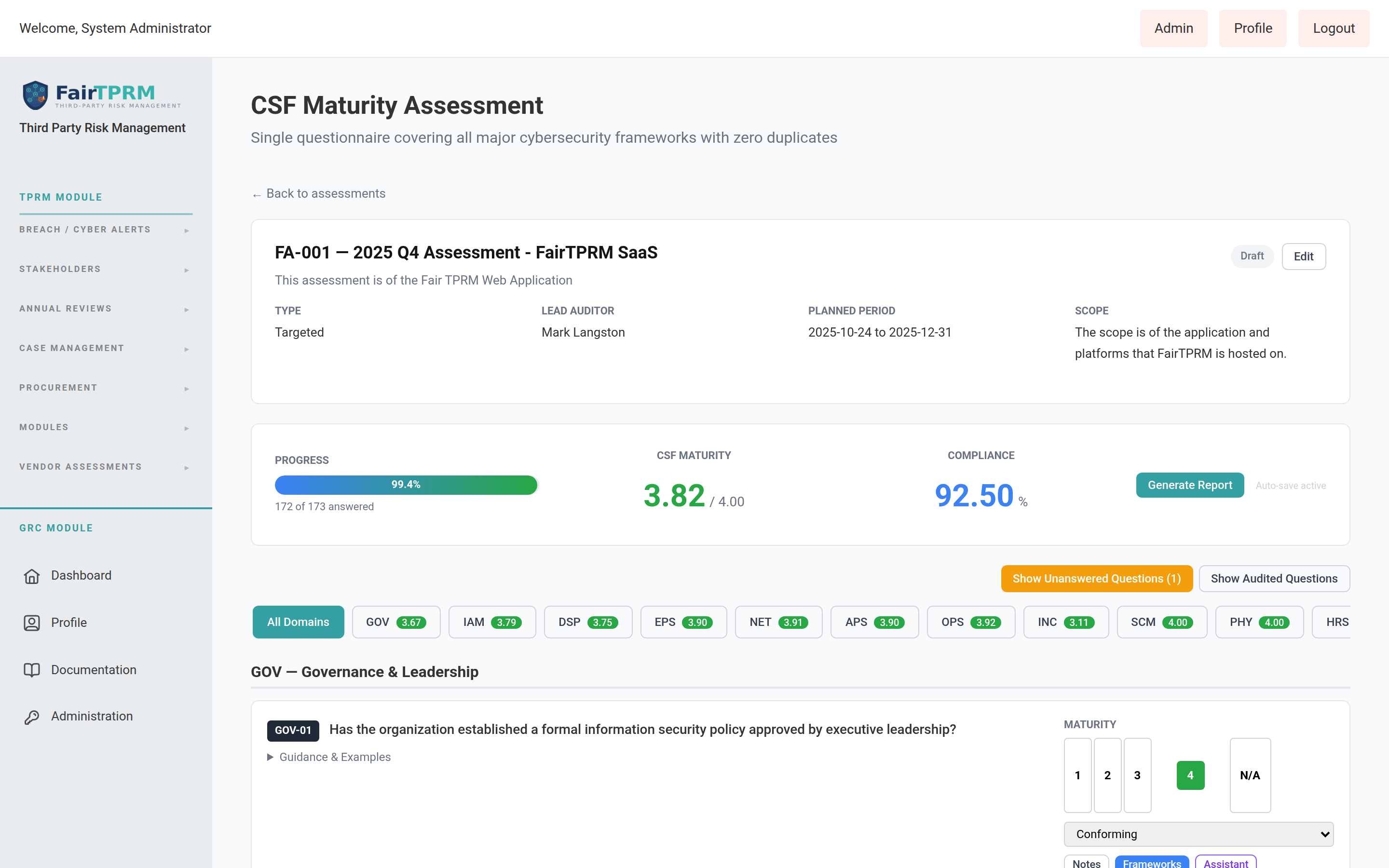
Once you have created an assessment, you need to answer the 146 unified security questions. Each question belongs to one of 14 security domains.
The 14 Security Domains
| Code | Domain Name | Questions | What It Covers |
|---|---|---|---|
GOV | Governance & Leadership | 12 | Security program leadership, strategy, budget, board reporting |
IAM | Identity & Access Management | 14 | User accounts, authentication, access controls, privileged access |
DSP | Data Security & Privacy | 12 | Data classification, encryption, privacy, data loss prevention |
EPS | Endpoint & Platform Security | 10 | Laptops, servers, mobile devices, patching, EDR |
NET | Network Security | 11 | Firewalls, segmentation, VPN, DNS security, Wi-Fi |
APS | Application Security | 10 | Secure development, code reviews, API security, WAF |
OPS | Security Operations | 12 | SIEM, logging, monitoring, vulnerability scanning, SOC |
INC | Incident Management | 10 | Incident response plans, tabletop exercises, breach notification |
SCM | Supply Chain & Third Party | 10 | Vendor management, supply chain risk, contracts |
PHY | Physical & Environmental | 8 | Data centers, badge access, CCTV, environmental controls |
HRS | Human Resources Security | 10 | Background checks, security training, termination procedures |
BCP | Business Continuity | 10 | Backup, disaster recovery, BCP testing, RTO/RPO |
CRY | Cryptography & Key Management | 8 | Encryption standards, key rotation, certificate management |
CMP | Compliance & Assurance | 9 | Regulatory compliance, internal audit, external audit readiness |
How to Answer Questions
- Navigate to → → .
- If you have multiple assessments, select the correct one from the dropdown at the top of the page.
- You will see the 14 security domains listed. Click on a domain name (e.g., GOV - Governance & Leadership) to expand it and see its questions.
- For each question, you need to provide two pieces of information:
- Maturity Rating (1-4) — How mature is your organization's implementation of this control?
- 1 — Initial/Ad Hoc: No formal process. Done inconsistently or not at all.
- 2 — Developing: Some processes exist but are not consistently followed. Partially documented.
- 3 — Defined: Formal, documented processes are in place and consistently followed.
- 4 — Managed/Optimized: Processes are measured, monitored, and continuously improved.
- Conformity Status — Your compliance status for this question:
- Conforming — Fully implemented and meets the requirement
- Partial — Partially implemented; some gaps remain
- Non-Conforming — Not implemented or does not meet the requirement
- Not Applicable — This question does not apply to your organization
- Maturity Rating (1-4) — How mature is your organization's implementation of this control?
- Optionally, add Notes to explain your answer. This is highly recommended — auditors will want to see your reasoning.
- Your responses auto-save as you work. You do not need to click a save button.
- Continue answering questions across all 14 domains. You do not need to complete everything in one session — come back anytime to resume.
Step 3: Upload Evidence
Evidence proves that your answers are accurate. Auditors will expect to see evidence for each compliance claim. Evidence can include screenshots, configuration exports, policy documents, audit logs, certificates, and more.
How to Upload Evidence During an Assessment
- While answering a question in the , look for the Evidence section below the question response area.
- Click Upload Evidence or the attachment icon.
- Select a file from your computer. Supported types include PDF, images (PNG, JPG), Word documents, Excel spreadsheets, and text files.
- Give the evidence a descriptive Title (e.g., "MFA Configuration Screenshot - Okta Admin Console").
- The evidence is automatically linked to the current assessment question.
- You can upload multiple evidence files per question.
Evidence Library
You can also manage evidence separately via → → . This page shows all evidence across all assessments and controls, with filtering by type, status, and expiry date.
Step 4: View Your Compliance Scores
As you answer questions, the platform calculates your compliance percentage for each framework in real-time.
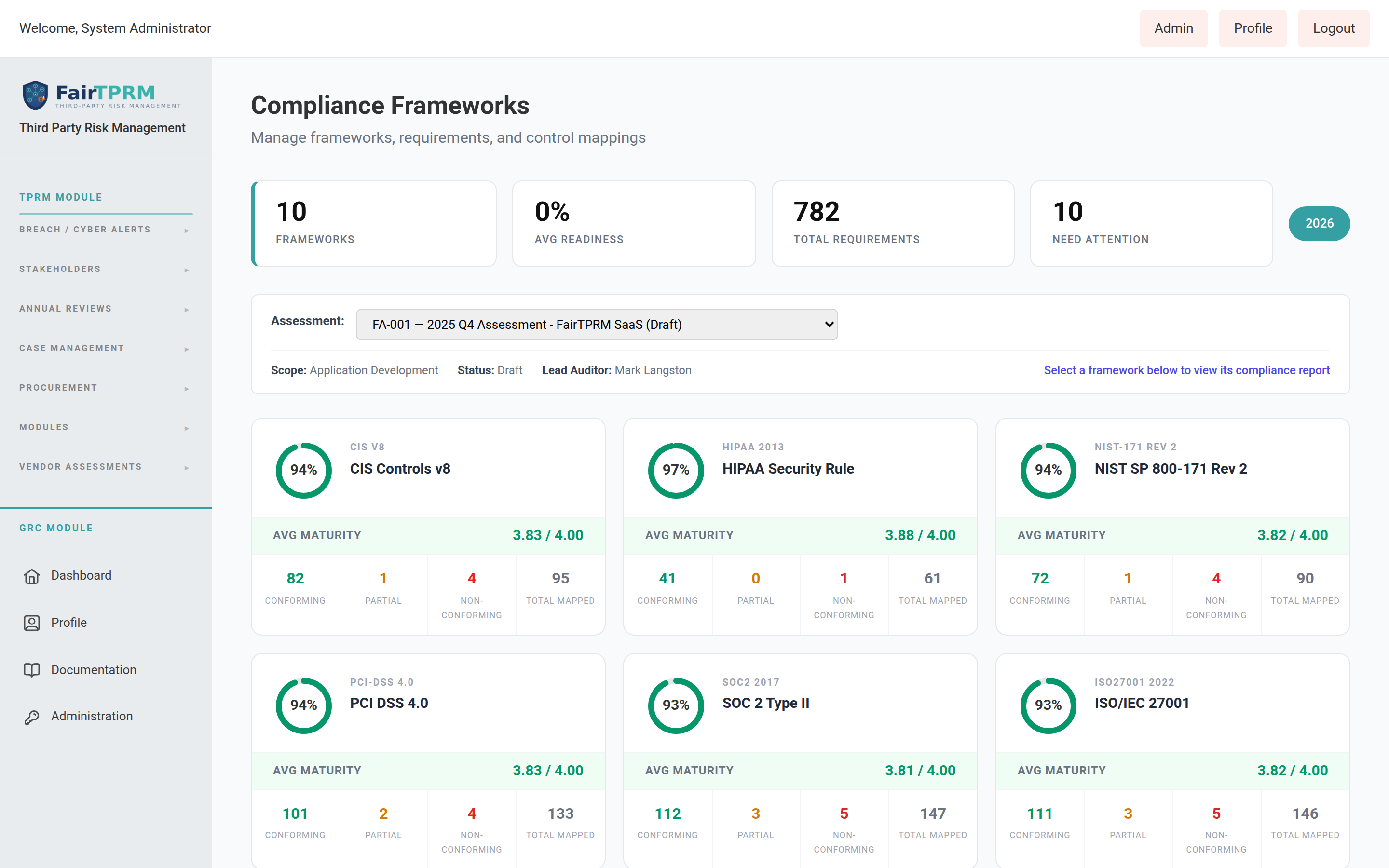
Viewing Scores on the Frameworks Page
- Navigate to → → .
- At the top of the page, you will see an Assessment dropdown. Select the assessment you want to view scores for. By default, the most recent assessment is selected.
- Below the dropdown, you will see framework cards — one for each compliance framework that has questions mapped to it. Each card shows:
- A donut chart showing the overall compliance percentage (e.g., 75%)
- The framework code and name (e.g., "SOC2 — SOC 2 Type II")
- Average Maturity score (if maturity data exists, displayed as e.g., "3.50 / 4.00")
- Metric counts: Conforming, Partial, Non-Conforming, and Total Mapped
- Click on any framework card to open the detailed Compliance Report for that framework.
Compliance Percentage Calculation
The compliance percentage is calculated as:
(Conforming + Partial × 0.5) ÷ Applicable Requirements × 100• Conforming requirements count as 100% complete
• Partial requirements count as 50% complete
• Not Applicable requirements are excluded from the calculation
• Non-Conforming and Not Assessed requirements count as 0%
Currently Supported Frameworks
| Framework | Version | Mapped Questions |
|---|---|---|
| NIST Cybersecurity Framework (CSF) | 2.0 | 146 |
| ISO/IEC 27001 | 2022 | 146 |
| SOC 2 Type II | 2017 | 146 |
| PCI DSS | 4.0 | 132 |
| CMMC / NIST 800-171 | v2.0 | 97 |
| CIS Controls | v8 | 95 |
| NIST SP 800-171 | Rev 2 | 90 |
| HIPAA Security Rule | 2013 | 61 |
Step 5: Generate a Framework Compliance Report
Once you have answered questions, you can generate a detailed compliance report for any framework. This report is suitable for sharing with auditors, regulators, or management.
How to Generate a Report
- Navigate to → → .
- Select your assessment from the Assessment dropdown at the top.
- Click on the framework card you want to report on (e.g., "SOC2 — SOC 2 Type II").
- The Framework Compliance Report page opens, showing:
- Report Header — Framework name, assessment title, type, status, scope, lead auditor, dates, and overall compliance percentage
- Summary Statistics — Clickable cards showing Total Requirements, Conforming, Partial, Non-Conforming, Not Assessed, and N/A counts
- Requirement Cards — One card per framework requirement, showing the requirement reference, title, status badge, and all mapped questions with their responses
- To filter requirements by status, click any of the summary statistic cards at the top. For example, click Non-Conforming to show only requirements that are non-conforming. Click it again (or click "Total Requirements") to show all.
- To print the report, click the Print Report button at the top. Your browser's print dialog will open. You can print to paper or select "Save as PDF" to create a PDF file.
What Each Requirement Card Shows
For each requirement in the report, you will see:
- Requirement Reference — The official reference number (e.g., "CC6.1" for SOC 2)
- Requirement Title — What the requirement says
- Status Badge — Color-coded: green (Conforming), amber (Partial), red (Non-Conforming), gray (Not Assessed / N/A)
- Mapped Questions — Each question that maps to this requirement, showing:
- Question reference and text
- Maturity rating (1-4) with a visual bar
- Conformity status
- Validation status (Pending, Validated, Rejected, Needs Review)
- Assessor name and date
- Mapping strength (Exact, Strong, Partial, Related)
- Assessor notes
- Validation notes
- Evidence attachments (with download links)
CSF Maturity Score Dashboard
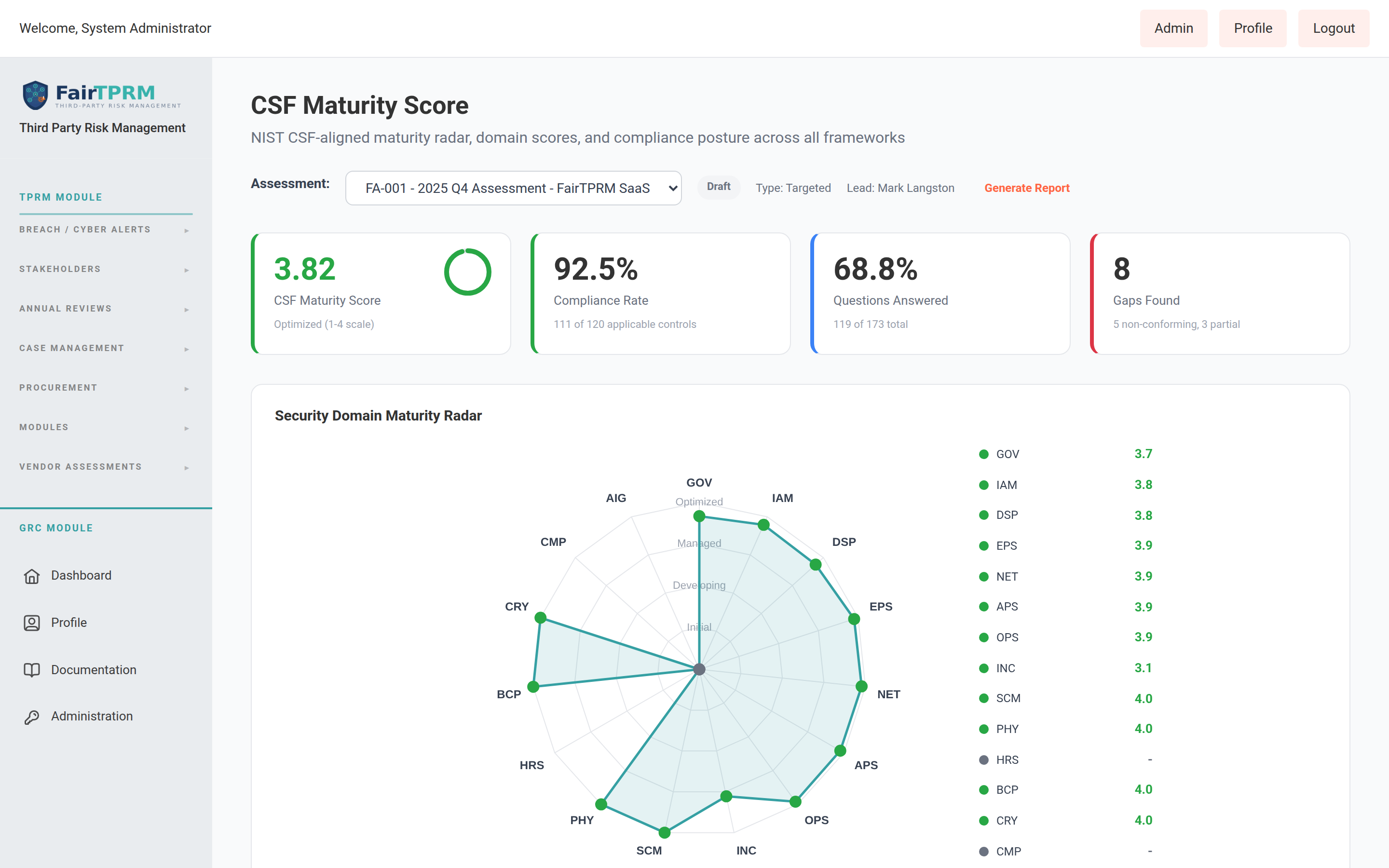
The CSF Maturity Score page provides a visual dashboard showing your organization's maturity across all 14 security domains, aligned to the NIST Cybersecurity Framework.
How to Access
- Navigate to → → .
- If you have multiple assessments, select the desired one from the dropdown.
- The page shows:
- Overall FAIR Score — A weighted average maturity score across all domains
- Radar Chart — A visual spider/radar chart plotting your scores across all 14 domains
- Domain Score Cards — Individual cards for each domain showing average maturity, questions answered, and conformity breakdown
- Framework Compliance Bars — Horizontal bars showing compliance percentages per framework
- Gap Analysis Summary — Domains where scores are below target
Gap Analysis
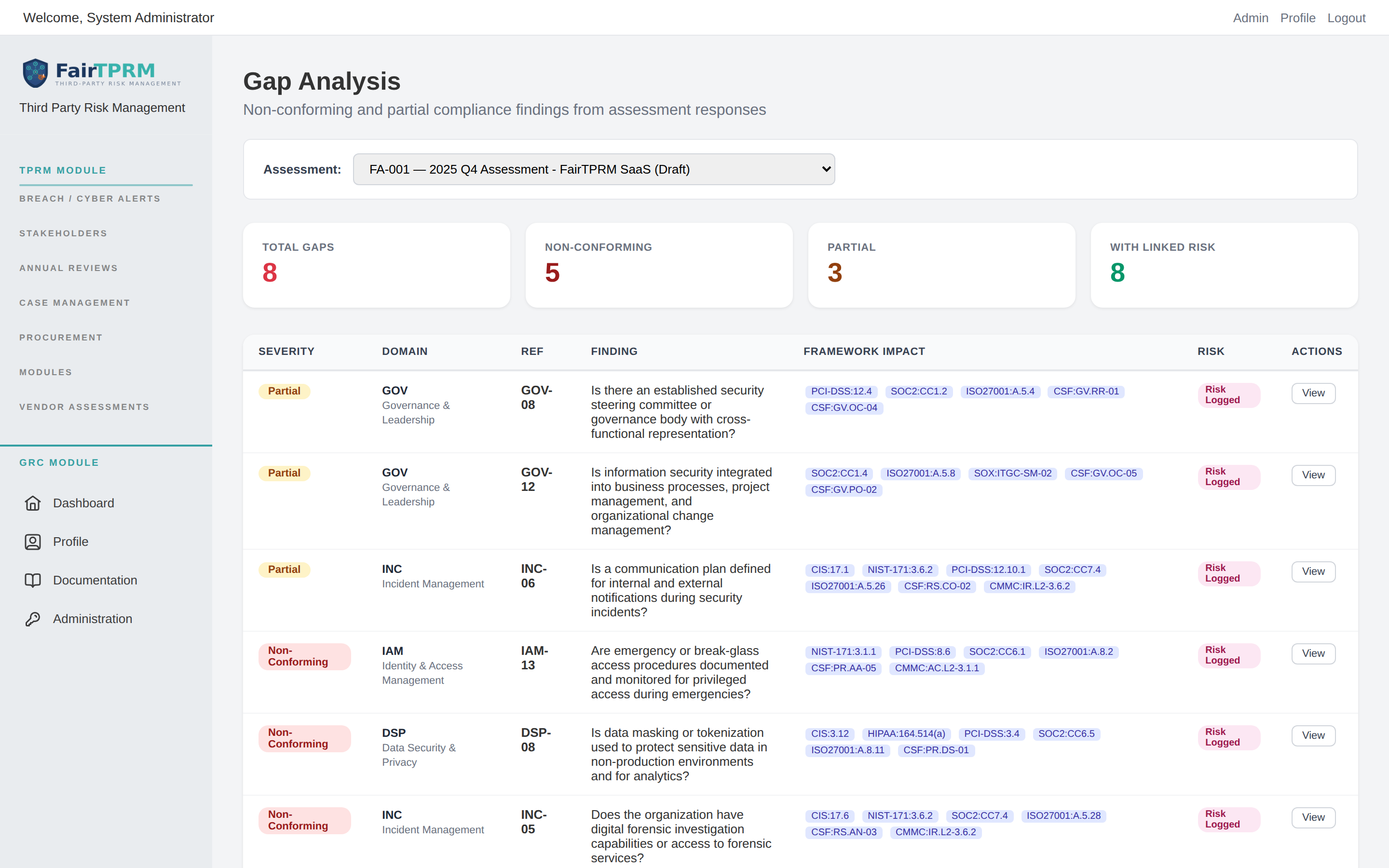
The Gap Analysis page pulls together every weakness found during an assessment — every question answered Non-Conforming or Partial — into one prioritised worklist. It answers the question "where are we falling short, and what does each shortfall affect?"
How to Access
- Navigate to → → .
- Select the assessment you want to analyse from the Assessment dropdown.
What the Page Shows
Four summary tiles at the top count your Total Gaps, Non-Conforming, Partial, and gaps With Linked Risk. Below them, each gap is listed as a row with:
- Severity — a badge: Non-Conforming (red) or Partial (amber).
- Domain and Ref — the security domain and the exact question reference (e.g.,
GOV-08). - Finding — the question text describing what is missing.
- Framework Impact — badges for every framework requirement this gap affects, so you can see at a glance whether a single fix improves SOC 2, ISO 27001, PCI DSS, and more at once.
- Risk — whether a risk has been logged for this gap, and a View action to open the full detail.
Frameworks Page
The Frameworks page is your central hub for viewing compliance status across all supported frameworks. It shows assessment-driven compliance data.
How to Use
- Navigate to → → .
- Select an assessment from the Assessment dropdown. The page defaults to your most recent assessment.
- The page displays framework cards in a grid. Only frameworks with mapped questions appear. Each card shows compliance percentage, maturity score, and metric counts.
- Click a framework card to open the detailed compliance report.
Framework Requirement Tree
If you navigate to this page without selecting an assessment (or by clicking a framework link from elsewhere), you will see the Requirement Tree view. This shows the hierarchical structure of all requirements within a framework, along with mapped controls and implementation status. Administrators and Cyber GRC users can add, edit, and delete custom requirements here.
Internal Controls
Internal Controls are the specific security measures your organization has implemented. Examples: "Multi-Factor Authentication on all systems," "Daily encrypted backups," "Annual penetration testing."
How to Create a Control
- Navigate to → → .
- Click + New Control.
- Fill in the fields:
- Control Title — A short name (e.g., "MFA for all user accounts")
- Description — Detailed description of what this control does
- Control Type — Preventive, Detective, Corrective, or Directive
- Category — Technical, Administrative, or Physical
- Implementation Status — Planned, In Progress, Implemented, or Not Applicable
- Effectiveness — Not Tested, Ineffective, Partially Effective, or Effective
- Risk Level — Low, Medium, High, or Critical
- Owner — The person responsible (limited to Administrator and Cyber GRC group members)
- Test Frequency — How often this control is tested (Daily, Weekly, Monthly, etc.)
- Under Framework Mapping, select which framework requirements this control satisfies. You can map one control to requirements across multiple frameworks.
- Click Save.
Framework Crosswalk
The Framework Crosswalk shows how compliance with one framework automatically provides coverage for another. For example, if you are SOC 2 compliant, how much of ISO 27001 do you already cover?
How to Use
- Navigate to → → .
- Select a Source Framework (the framework you have already completed, e.g., "SOC 2").
- Select a Target Framework (the framework you want to compare against, e.g., "ISO 27001").
- The crosswalk table shows which target requirements are covered by your source controls, and which have gaps.
Evidence Library
The Evidence Library is a centralized repository for all compliance evidence across your organization.
How to Upload Evidence
- Navigate to → → .
- Click + Upload Evidence.
- Fill in: Title, Evidence Type (screenshot, document, certificate, configuration, report, etc.), Description, and optionally an Expiry Date.
- Select the file to upload.
- Click Upload. The file is encrypted and stored securely.
- You can then link this evidence to specific controls or assessment responses.
Evidence Statuses
| Status | Meaning |
|---|---|
| Current | Active, valid evidence |
| Expired | Past its expiry date — needs to be refreshed |
| Superseded | Replaced by newer evidence |
| Draft | Uploaded but not yet reviewed or finalized |
Policy Management
The Policies page provides a full policy lifecycle — from drafting through approval, publishing, and periodic review.
How to Create a Policy
- Navigate to → → .
- Click + New Policy.
- Fill in: Title, Category (Security, Privacy, Compliance, Operational, HR, IT, etc.), Review Frequency (how often the policy should be reviewed).
- Write the policy content using the rich text editor.
- Click Save. The policy is created in Draft status.
- When ready, submit for Review → Approve → Publish.
Policy Lifecycle
Draft → Review → Approved → Published → (Periodic Review or Retired)
Audits & Findings
The Audits page manages the full audit lifecycle — from planning through fieldwork, findings, remediation, and closure.
How to Create an Audit
- Navigate to → → .
- Click + New Audit.
- Fill in: Title, Audit Type (Internal, External, Certification, Surveillance, Readiness), Framework, Lead Auditor, Planned Start/End Dates.
- Click Create.
Recording Findings
- Open an audit and click + Add Finding.
- Fill in: Title, Severity (Informational, Low, Medium, High, Critical), Finding Type (Nonconformity, Observation, Opportunity, Strength), and Description.
- Map the finding to specific framework requirements or controls.
- Assign remediation to a team member with a due date.
- Track remediation progress through to Verified Closed status.
Audit Statuses
| Status | Meaning |
|---|---|
| Planning | Defining scope, objectives, and schedule |
| Fieldwork | Active testing, evidence review, and interviews |
| Reporting | Drafting audit report and documenting findings |
| Remediation | Findings have been reported; team is fixing issues |
| Closed | All findings resolved and audit is complete |
Risk Register
The Risk Register tracks organizational risks with likelihood/impact scoring, treatment plans, and links to controls.
How to Add a Risk
- Navigate to → → .
- Click + New Risk.
- Fill in: Title, Description, Category (Strategic, Operational, Financial, Compliance, Reputational, Technology, Third Party).
- Set Likelihood (Rare, Unlikely, Possible, Likely, Almost Certain) and Impact (Insignificant, Minor, Moderate, Major, Catastrophic).
- The system calculates the Inherent Risk Score (Likelihood × Impact, on a 1-25 scale).
- Select a Treatment Strategy: Accept, Mitigate, Transfer, or Avoid.
- Link relevant internal controls to show how the risk is being mitigated. The system calculates the Residual Risk Score after controls.
Continuous Monitors
Continuous Monitors are automated checks that verify your security controls on a schedule (hourly, daily, weekly, or monthly).
How to Create a Monitor
- Navigate to → → .
- Click + New Monitor.
- Fill in: Title, Check Type, Frequency (Hourly, Daily, Weekly, Monthly), and the Collector Configuration (JSON settings for the check).
- Link the monitor to an internal control.
- Enable the monitor. It will run automatically on the configured schedule.
- View results (Pass, Fail, Error, Warning) and execution history on the monitor detail page.
Task Inbox
The Task Inbox shows all GRC tasks assigned to you across all assessments. Tasks are created during assessments to delegate work like evidence collection, remediation, reviews, or documentation.
How to Use
- Navigate to → → .
- You will see a list of tasks assigned to you. Each task shows: title, type (Evidence Request, Remediation, Review, Documentation, Implementation), priority, due date, and status.
- Click a task to view details and update its status.
- Mark tasks as In Progress when you start working, and Completed when done.
GRC Dashboard
The GRC Dashboard is your compliance command center — a single-page overview of your entire GRC posture.
What the Dashboard Shows
- Framework Compliance Heatmap — Color-coded compliance percentages for each framework
- Control Implementation Progress — How many controls are implemented vs. planned
- Evidence Freshness — How many evidence items are current, expiring, or expired
- Open Findings — Count and severity breakdown of unresolved audit findings
- Policy Review Status — Policies that are due for review
- Monitor Health — Pass/fail status of continuous monitors
- Risk Register Summary — Open risks by severity
How to Access
Navigate to → → .
TPRM Module: What is Third Party Risk Management?
Every company relies on outside vendors — cloud providers, payroll companies, marketing platforms, IT consultants. Each vendor may have access to your data or systems. TPRM helps you answer: "How risky is each vendor, and are they protecting our data?"
- Add and track all your vendors in one place
- Assign a risk tier (Tier 1 = highest risk, Tier 3 = lowest)
- Send security questionnaires (assessments) to vendors
- Automatically score vendors using external security rating services
- Perform quantitative risk analysis (FAIR) to estimate potential financial losses
- Track 4th-party risk (your vendors' vendors)
- Discover unmanaged SaaS applications (Shadow SaaS)
Adding a New Vendor
- In the left sidebar, expand , then expand the section.
- Click . This opens the vendor onboarding form.
- Fill in the required fields:
- Vendor Name — The company's legal name (e.g., "Acme Cloud Services")
- Vendor Domain — Their website domain without https:// (e.g., "acmecloud.com"). Used by security scoring engines to scan the vendor.
- Fill in recommended optional fields:
- Vendor Type — Technology, Professional Services, Financial Services, HR/Benefits, etc.
- Vendor Tier — 1 (Critical), 2 (Important), or 3 (Standard)
- Primary Contact Name, Email, Phone
- PII Record Count — How many personal records this vendor accesses
- SPII Record Count — How many sensitive personal records (SSNs, health data)
- Click Save. The vendor is created in Draft status.
• Tier 1 (Critical) — Vendors with access to sensitive data or critical systems. Require full assessment.
• Tier 2 (Important) — Vendors with moderate access. Require standard assessment.
• Tier 3 (Standard) — Low-risk vendors. May only require a basic review.
Vendor Lifecycle
Vendors move through a defined lifecycle:
Draft → Pending Review → In Review → Approved (or Rejected) → Active → Annual Review → Offboarded
Each stage triggers appropriate workflows, notifications, and required actions.
Vendor Assessments
Vendor assessments are security questionnaires sent to vendors to evaluate their security posture. Navigate to → to manage them.
- Open a vendor's detail page.
- Click Send Assessment.
- Select the assessment template appropriate for the vendor's tier.
- The vendor receives an email with a link to complete the questionnaire.
- Once submitted, review the vendor's responses and score them.
Assessment Forms: Download, Fill, Import & AI Auto-Fill New in 2.6.2
Not every vendor wants to answer a questionnaire in the browser. From an individual assessment's page ( → → open an assessment) you can hand the vendor an offline copy, take back a completed file, or let an AI provider pre-fill answers from the vendor's own certificates. The buttons sit in a row near the top of the assessment.
Download the assessment as a fillable file
- Download PDF — a fillable PDF form. Every question becomes a real form field, so the vendor can type and tick boxes directly in the file.
- Download Excel — a real
.xlsxworkbook that can be completed in Excel, Google Sheets, or LibreOffice. Single-choice questions get in-cell dropdowns, and conditional questions gray out automatically when they do not apply.
Import a completed assessment (PDF, Excel, or CSV)
When the vendor sends the finished file back, click Import Completed Assessment and upload it. The platform detects the format automatically — a completed PDF, Excel (.xlsx), or CSV — and merges the answers into the assessment's existing responses.
Have a certificate instead? New in 2.6.2
A vendor completing an assessment may be offered a shortcut: if they hold a relevant certification, they can upload it instead of answering every question. The “Do you have a Certificate?” prompt now shows whatever Certificate Upload Instructions the template author wrote, so it is no longer limited to ISO 27001 — a template can invite a SOC 2 Type 2, ISO 27001, or any other certificate. (Template authors set this text in the Template Builder; see Assessment Template Builder.)
AI Auto-Fill from Certifications New in 2.6.2
If your administrator has configured an AI provider, an authorized reviewer can let the AI read the vendor's uploaded certification documents and pre-fill the questionnaire. Click ⚡ Auto-Fill from Certifications on the assessment page.
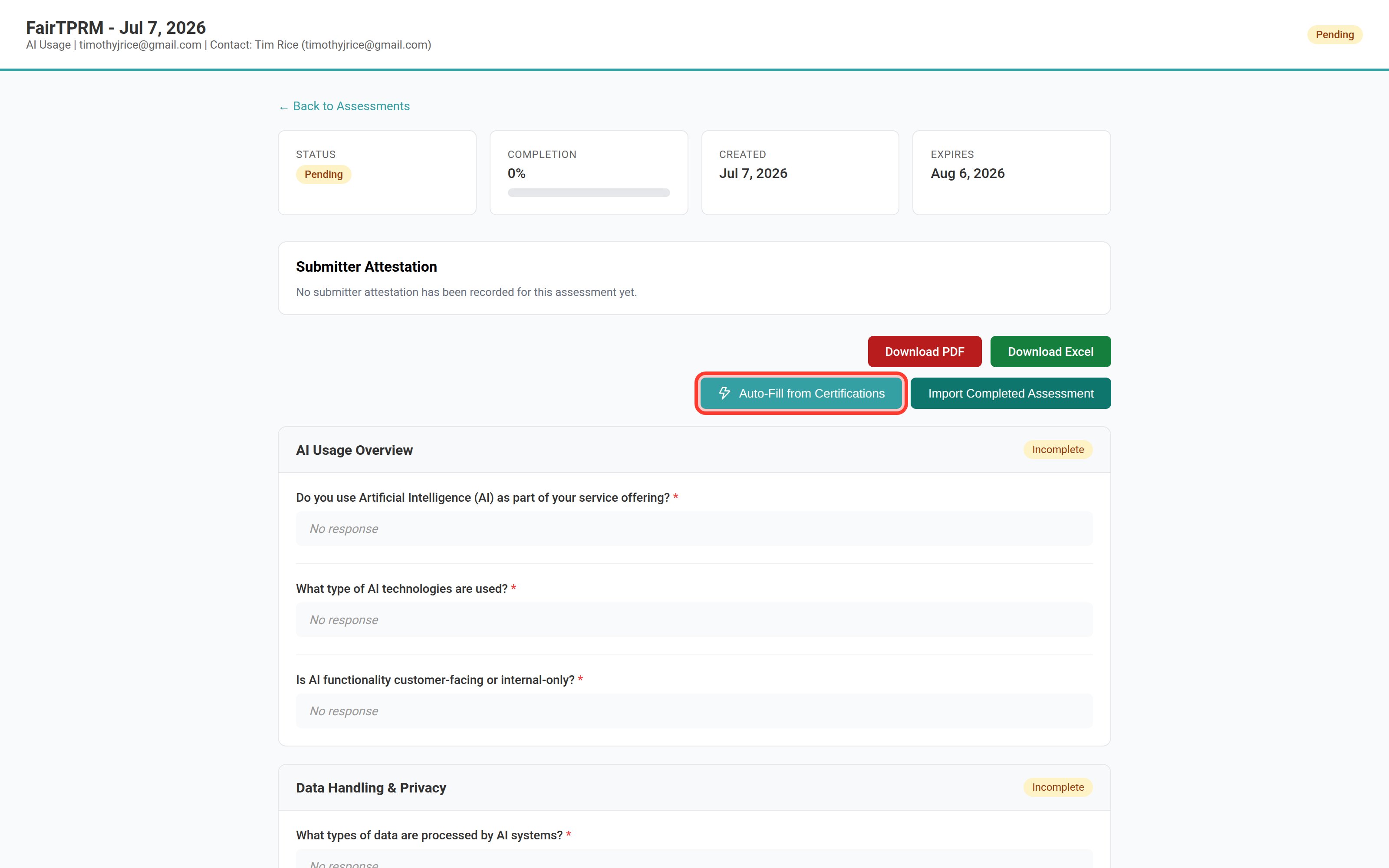
When you click it you are reminded: “This will analyze the vendor's certification documents and pre-fill unanswered questions. Existing answers will not be changed.” The AI then works through the vendor's certificates and reports, for example, “Filled 12 of 30 unanswered questions.” A few things to know:
- Only current certificates are used. It reads the vendor's uploaded documents whose type is Certification and that are active and not expired (PDF, CSV, and Excel documents; the most recent few). An expired or superseded certificate is ignored.
- It only fills blanks. Questions you have already answered are left untouched, and it never overwrites an existing answer.
- It answers only from what the documents actually say. The AI is instructed not to guess; anything it cannot confidently support from the documents is left unanswered for a person to complete.
- You stay in control. The filled answers are saved and the page reloads showing them, so you can review and change any answer before the assessment is submitted.
Vendor Action Plan New in 2.6.2
The Action Plan tab on a vendor's page lets the cyber team schedule follow-up work against that vendor — contact the vendor, send another assessment, force an annual review — with a due date, owners, and a running set of status notes. A daily job fires each action when its date arrives and turns it into a tracked to-do.
Open a vendor from → → , then click the Action Plan tab. The tab is available to Administrators and Cyber TPRM users.
Scheduling an action
- On the Action Plan tab, click + Create Action.
- Choose the Action: Contact Vendor, Contact Stakeholder, Send Assessment, or Force Annual Review. (If you pick Send Assessment, a Vendor Assessment picker appears so you can choose which template to send.)
- Set the Due Date — the day the action should fire.
- Under Assign to (Cyber TPRM), tick one or more Cyber TPRM owners. (If there are none, the action falls back to the vendor's stakeholder.)
- Optionally tick Email assigned individuals when this action fires, and use Notification email addresses to send to specific addresses instead — comma-separated. Leave it blank to use the assignees' own account emails.
- Write a Description (it is carried into the to-do that gets created), then click Create Action.
What happens when an action fires
Each action fires once, on or after its due date. Firing creates a linked Cyber To-Do that deep-links back to this Action Plan tab, carries out the action (for Send Assessment it emails the vendor the questionnaire; for Force Annual Review it marks the annual review due), and — if you enabled it — emails the owners or the addresses you listed.
Action statuses
An action moves through these statuses:
Pending → In Progress (set automatically when it fires) → Completed, or Problem if something went wrong when it fired, or Cancelled if you cancel it before it fires. You can change the status yourself at any time; the daily job never overwrites a status you have set.
Status notes
Open an action to add dated Status Notes as the work progresses. Type a note and click Add Note. You can edit or delete your own notes; administrators can edit or delete anyone's. Every create, edit, and delete is audit-logged.
Security Risk Scorecard (SRS)
The SRS provides an automated, external security score for each vendor based on DNS configuration, SSL/TLS, email security (SPF, DKIM, DMARC), open ports, and other technical indicators.
Navigate to → → .
FAIR Analysis
FAIR (Factor Analysis of Information Risk) is a quantitative risk model that estimates the probable financial loss from a security event involving a vendor.
Navigate to → → to create and view analyses.
4th Party Risk
Track the vendors that your vendors rely on. If your cloud provider uses a subcontractor for data storage, that is a 4th-party risk. From the sidebar you can open (technology concentration), , and . It is available to administrators and Cyber TPRM users; auditors can view but not act.
Subprocessor concentration New in 2.6.2
Open to see the Subprocessor Concentration view: every subprocessor your vendors have declared, and how many of your vendors use each one. A subprocessor shared across several vendors is highlighted — that shared dependency is supply-chain concentration risk. (Subprocessors are added to a vendor from that vendor's detail page.)
Send an assessment to everyone using a subprocessor New in 2.6.2
When a subprocessor concentrates risk, you can survey the vendors that depend on it in one action:
- On the Subprocessors list, click Send Assessment on that subprocessor's row.
- In the vendor picker, choose which of the vendors using that subprocessor should receive the assessment (or Select All Visible), then continue.
- Pick an Assessment Template and an Expires In window (14, 30, 60, or 90 days), then click Assign Assessment.
Each selected vendor is emailed the questionnaire (a request-for-information), and a reminder is tracked so follow-ups go out automatically. Vendors with no email on file are skipped, and any send that fails is retried by the reminder job. The same Assign Assessment flow is available from the technology-concentration and CVE views.
Shadow SaaS Discovery
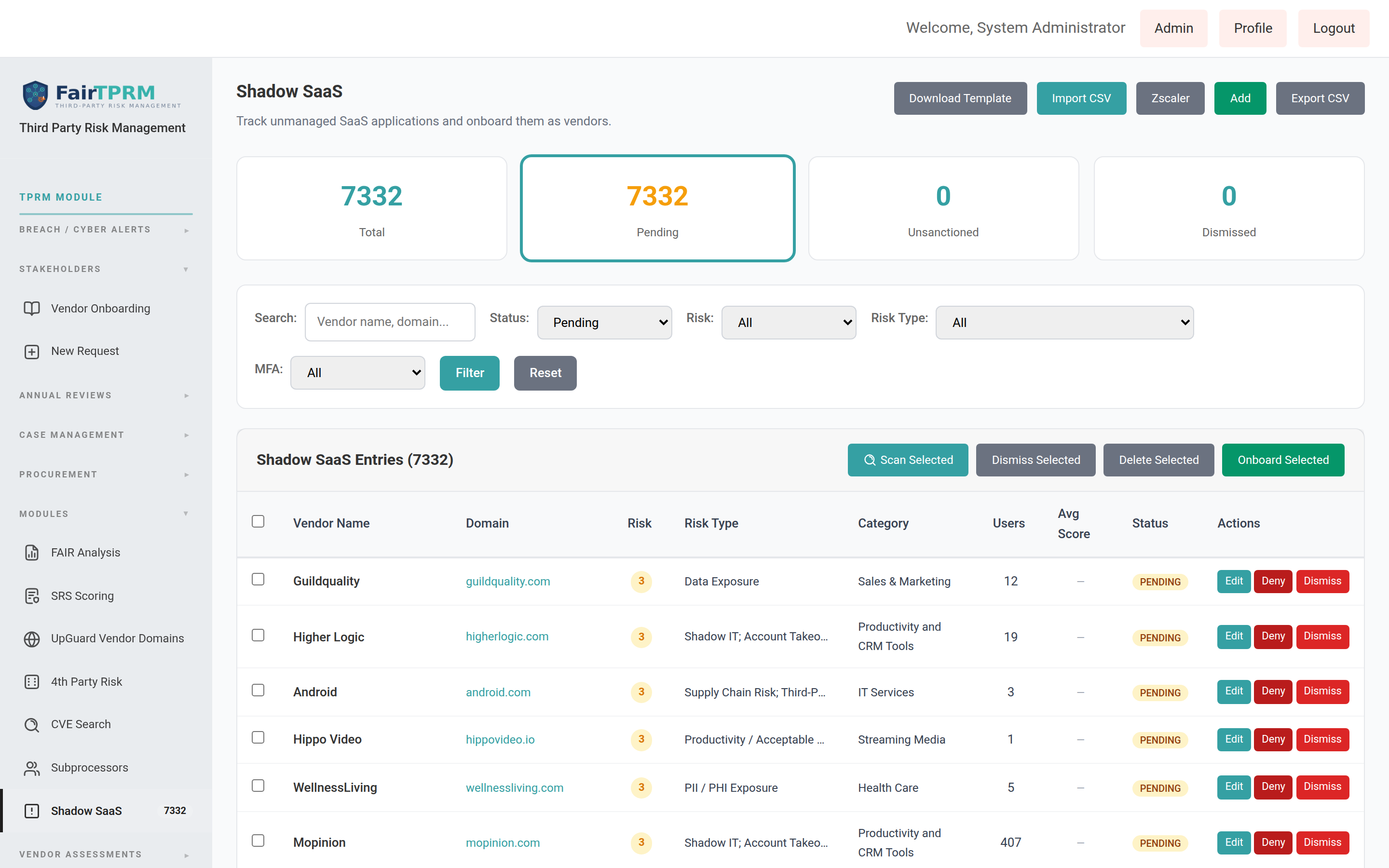
Discover SaaS applications being used across your organization that may not have been formally approved or assessed. Navigate to → → . In v2.6.2 this list can be filled automatically by the Grip or Hero Shadow SaaS integration, and unsanctioned apps can be blocked in Zscaler.
Vendor Onboarding & Procurement Onboarding New in 2.6.2
A vendor onboarding request is how a new vendor enters the platform. It moves through a series of statuses from first draft to final decision. Before the cyber team will review a vendor, the vendor must first be onboarded through your procurement process and have a valid Vendor ID (VID). This section explains why, and exactly how it works.
The onboarding journey (statuses)
| Status | What it means |
|---|---|
| Draft | The request is being filled in. It has not been sent for review yet. |
| Submitted | The request passed the submission checks and has been sent to the cyber team. |
| In Review | The cyber team is reviewing the vendor. |
| AI Review | The vendor's services use AI and it is in the dedicated AI review stage (see AI Review). |
| Evaluation | The vendor is being trialled or evaluated. |
| Approved | The vendor has been approved and is onboarded. |
| Rejected | The vendor was not approved. |
| Inactive | The vendor is no longer active. |
Finding your vendor requests
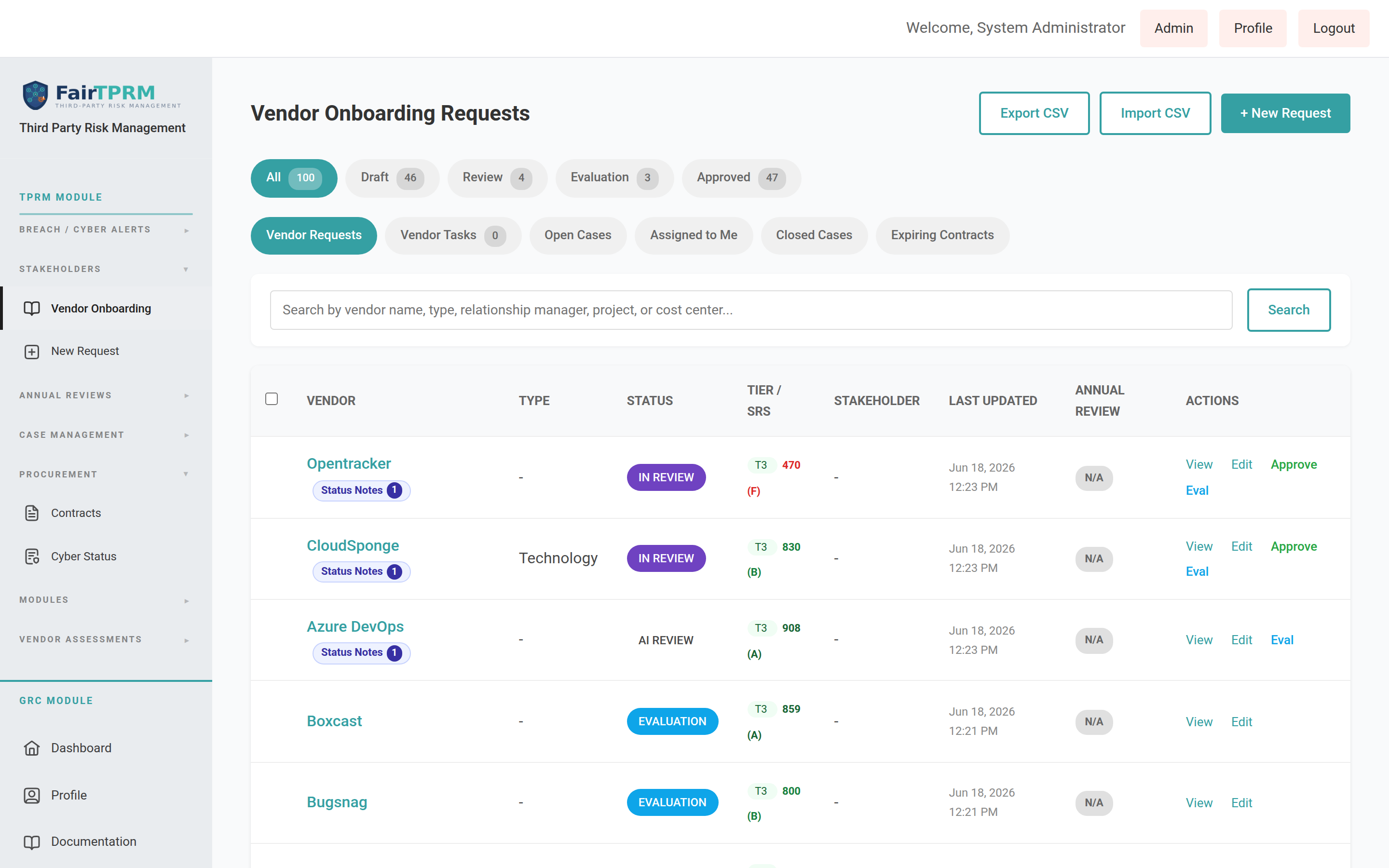
Go to → → . You will see a searchable list of vendors with their status, tier, security score (SRS), and quick actions (View, Edit). Use the filter pills at the top (for example All, Approved, Review) to narrow the list. Use + New Request to start a new vendor.
The two things every vendor needs before review
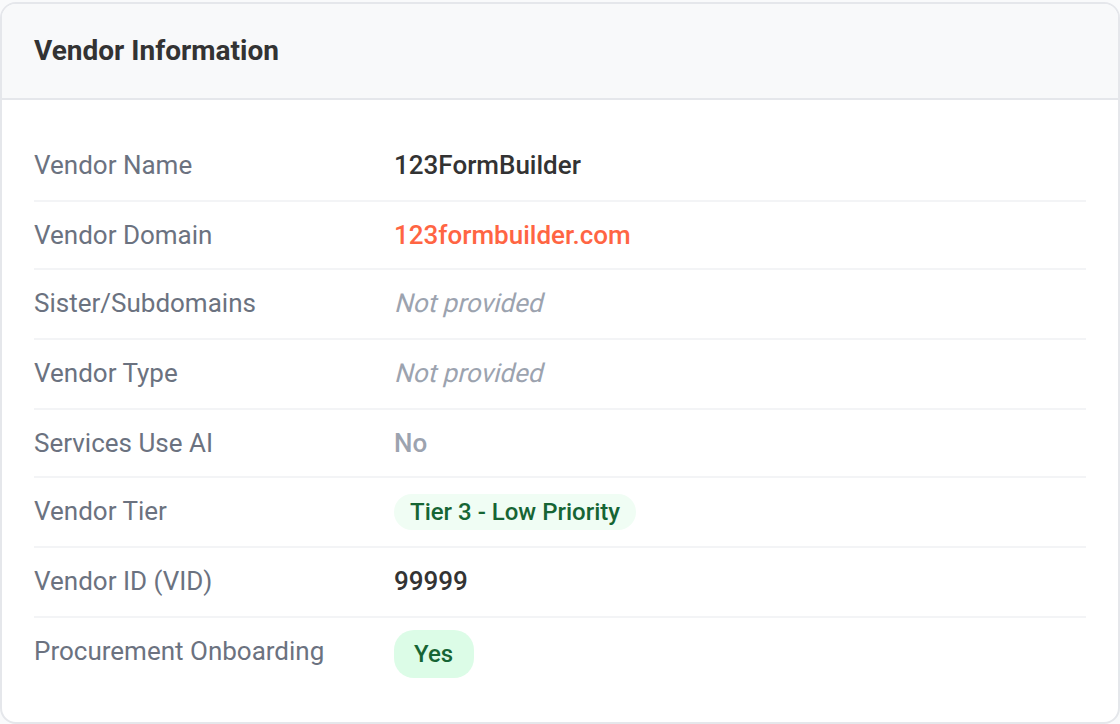
Open a vendor and look at the Vendor Information card. Two fields control whether the vendor can be submitted for cyber review:
- Procurement Onboarding — a Yes/No field answering the question "Has this vendor completed Procurement Onboarding?" This must be set to Yes.
- Vendor ID (VID) — the 4–8 digit identifier assigned to the vendor by your procurement system. This must be a valid 4–8 digit number.
Submitting a vendor for review
- Open the vendor from the list (the request must be in Draft).
- In the Vendor Information card, set Procurement Onboarding to Yes and enter a valid Vendor ID (VID) (4–8 digits). Save your changes.
- Click Submit for Review. You will be asked to confirm: "Submit this vendor for review? The vendor must have a valid VID and be onboarded at VSU."
- If both checks pass, the status changes to Submitted and the cyber team is notified.
- "Cannot submit: Vendor must be onboarded at VSU before submission. Please complete the onboarding assessment with VSU details." → set Procurement Onboarding to Yes.
- "Cannot submit: A valid Vendor ID (VID) is required (4-8 digits). Please complete the onboarding assessment with the VSU Vendor ID." → enter a valid 4–8 digit Vendor ID.
Custom Onboarding Fields & the Custom Data Tab New in 2.6.2
Standard vendor fields (name, domain, tier, VAT, and so on) cover most needs, but every organization tracks something extra. In v2.6.2 an onboarding template can define custom fields that have no standard vendor column. Their values are captured per vendor and shown on the vendor's Custom Data tab.
Where custom values live: the Custom Data tab
Open a vendor ( → → → open a vendor). If the vendor's onboarding template defines any custom fields, a Custom Data tab appears alongside the other vendor tabs, with a count of how many custom values are on file. The tab is read-only until you click Edit; make your changes and click Save Custom Data. Fields are grouped by their template section. Users who are allowed to see a field but not edit it see it marked (view only).
Defining a custom field (administrators)
A custom field is just a question on an Onboarding-category template whose Field Name is one that is not a built-in vendor column. There are two steps, both in the Admin Portal:
- Register the field name. Go to → , click + Add Field, and add your custom field (lowercase letters, numbers, and underscores; e.g.
data_residency_region). Choose a column type (text, number, date, etc.) and the Onboarding category. - Add a question that maps to it. In → , open your onboarding template, add a question, and set its Field Name to the field you just registered. See Assessment Template Builder.
New field types for richer answers New in 2.6.2
Beyond the existing text, number, date, dropdown, and radio types, questions (custom or standard) can now use:
| Type | What the vendor sees |
|---|---|
| Checkboxes | A multi-select list — tick every option that applies. |
| Button Group (Multi) | The same multi-select, shown as a row of toggle buttons. |
| Phone | A phone number with a country-code & flag picker (see Phone & VAT Question Types). |
| VAT Number | An EU VAT number with double entry and live VIES validation (see Phone & VAT Question Types). |
The single-select counterparts (Dropdown, Radio Buttons, Button Group) are still available. Multi-select types need an Options list (one per line).
Controlling who can see and edit a field (role-based gating) New in 2.6.2
On onboarding templates, each custom section and question carries two role controls, so you can keep sensitive fields away from people who should not see them:
- Visible to Roles — which roles can see the field.
- Visible and Editable Roles — which roles can edit it.
Both a section's grant and a question's grant must allow a person before they see that question, so you can hide a whole section or just individual fields within it.
Custom values in exports and the API
- CSV export. On the list, Export CSV (administrators and Cyber TPRM) now adds one column per custom field, named
custom:<field_name>, alongside the standard columns. - REST API. The single-vendor response (
GET /vendors/{id}) includes acustom_onboarding_dataarray; each entry hasfield_name,label,value,type,section, andtemplate_name.
Both read from the same place as the Custom Data tab and honor the same role-based visibility — a field the caller (or the API key's owner) cannot see is blanked or omitted.
AI Review for Vendors New in 2.6.2
Some vendors provide services that use artificial intelligence. These vendors can carry different risks, so v2.6.2 adds a dedicated AI Review status to track them separately during the review process.
How a vendor enters AI Review
On the Vendor Information card there is a Services Use AI field. When this is set to Yes, an authorized reviewer (a Cyber TPRM user or Administrator, while editing the vendor) sees a Force AI Review link directly beneath that field.
- Open the vendor and confirm Services Use AI is set to Yes.
- Click Force AI Review. Confirm the prompt: "Force this vendor into AI Review?"
- The vendor's status changes to AI Review.
On the Procurement Cyber Status page and on the vendor list's Review filter, vendors in In Review and AI Review are shown together — so nothing in review is ever hidden just because it is being reviewed with AI.
Procurement Cyber Status New in 2.6.2
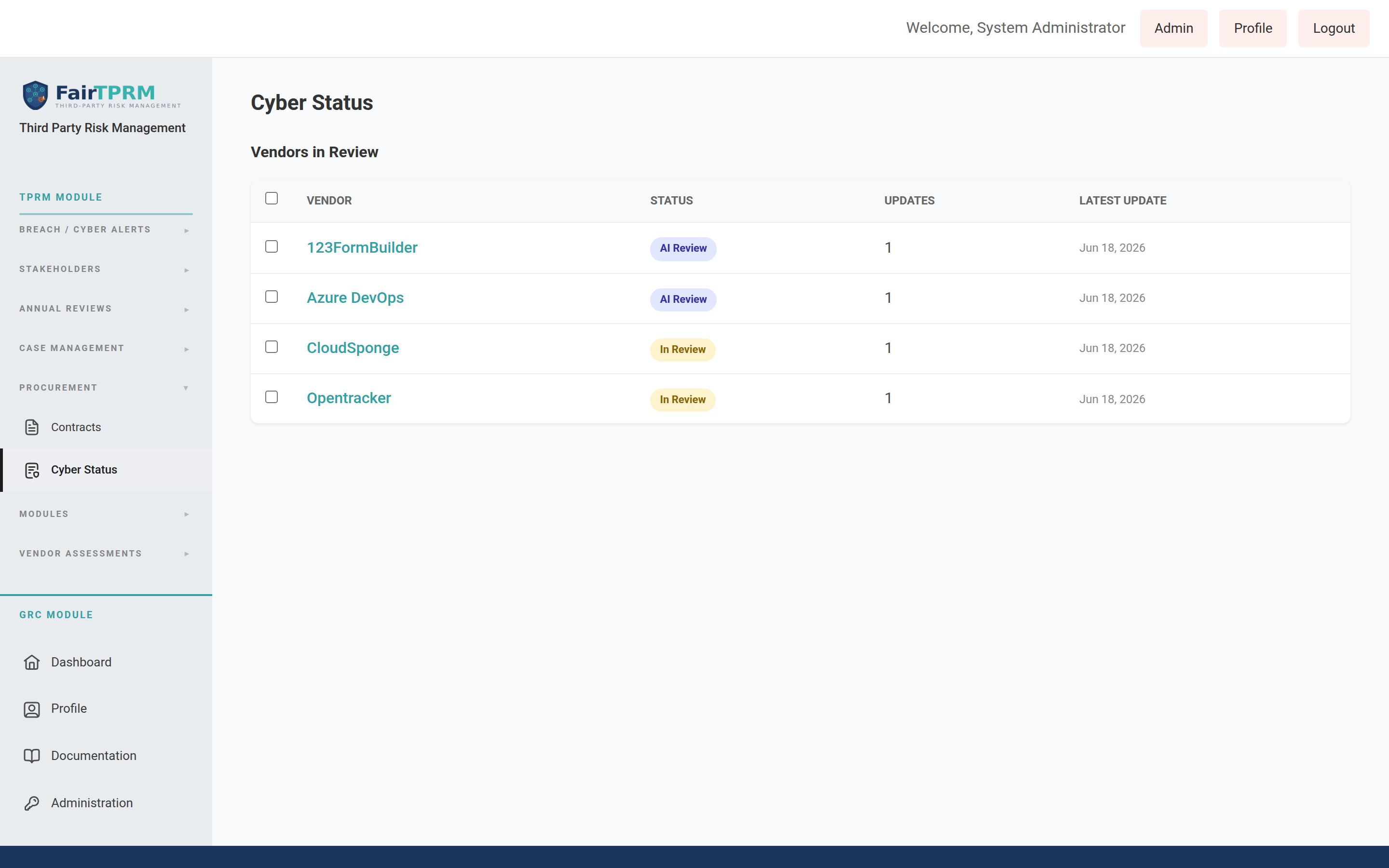
The Cyber Status page gives the procurement team a simple, always-current view of which vendors the cyber team is reviewing and what the latest word is on each one — without needing access to the full security tooling. The cyber team posts short, dated updates; procurement reads them here (and in a weekly email).
Open it from → → . It is available to Procurement, Cyber TPRM, and Administrator users.
Reading a vendor's update history
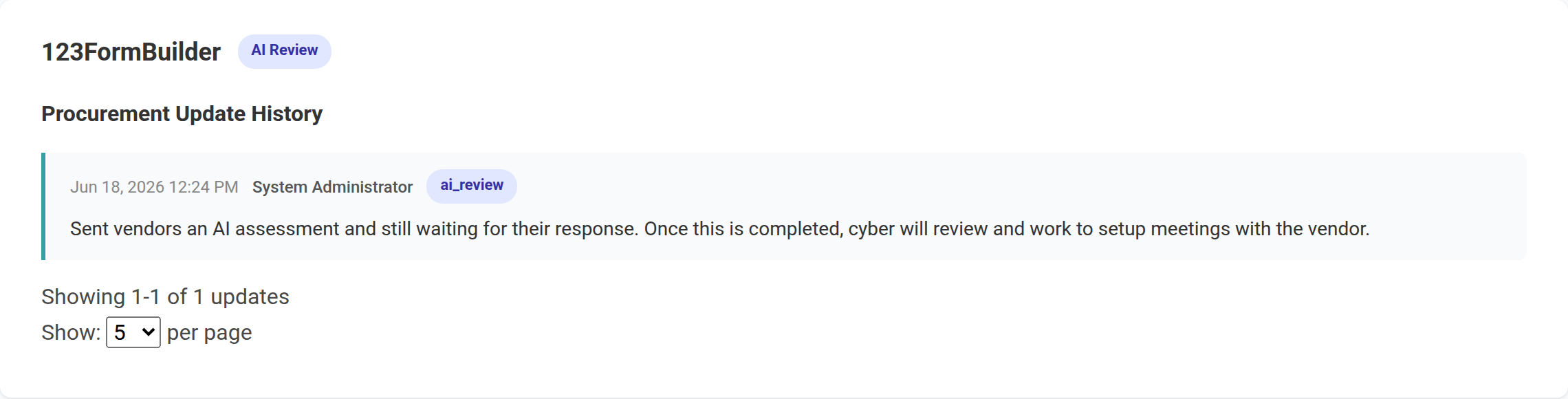
- Click a vendor's name in the Vendors in Review table.
- The Procurement Update History panel opens, showing every update newest-first: the date and time, who wrote it, the vendor's status at that time, and the note itself.
For cyber reviewers: posting an update to procurement
Cyber TPRM users and admins can post an update for one or more vendors at once:
- On the Cyber Status page, tick the checkbox next to each vendor you want to update.
- Click Provide Procurement with Update.
- In the Provide Procurement with Update window, type your note in the Update box.
- Optionally use Change status to move the vendor(s) forward (for example to Evaluation, Approved, or Rejected). Leave it on Keep current status to only add a note.
- Click Save Update. The update is recorded against every selected vendor.
The weekly procurement digest email
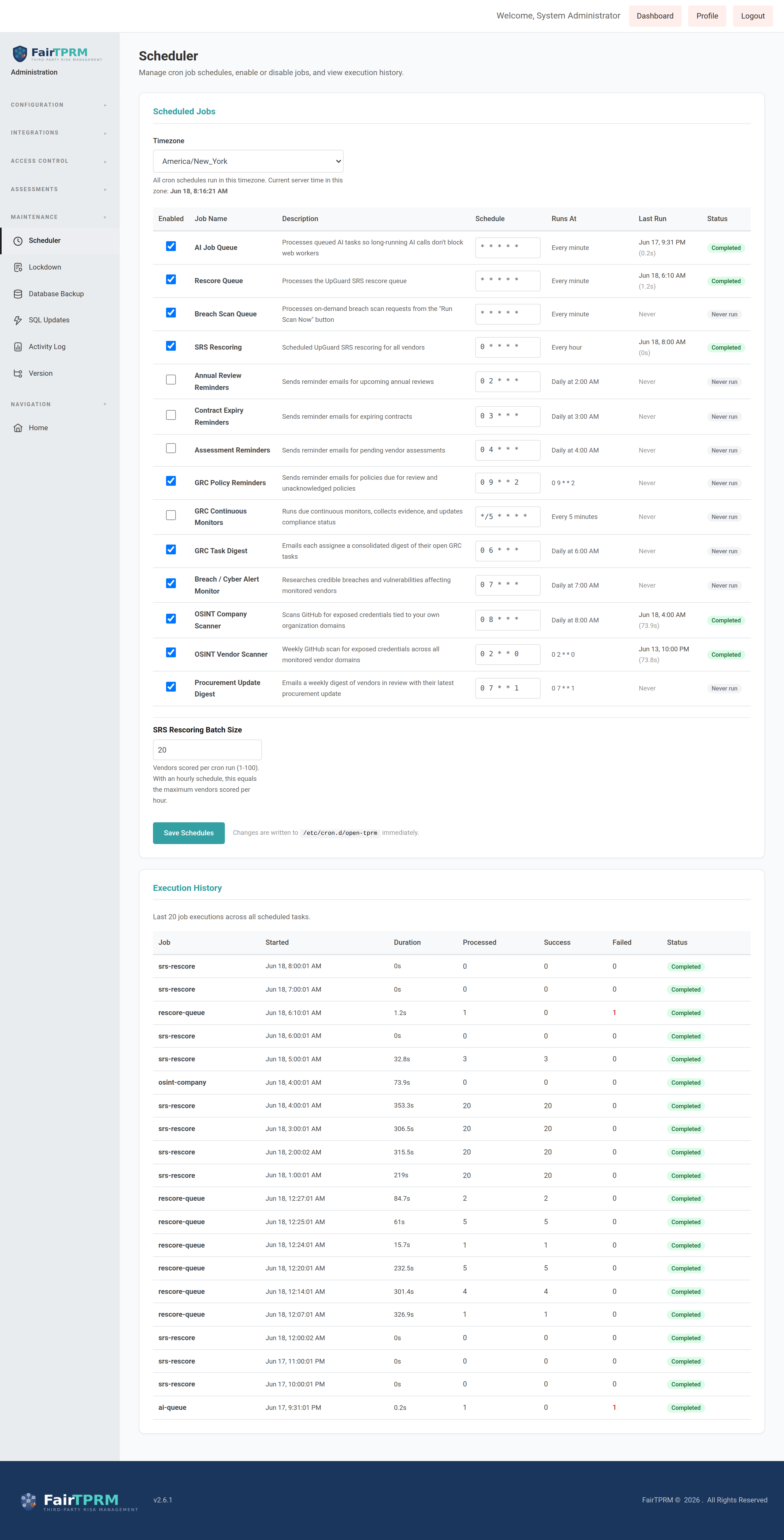
To keep procurement informed without anyone logging in, the platform can email a weekly digest listing every vendor in review together with its most recent update. By default this is sent every Monday at 7:00 AM.
- An administrator goes to → and finds the Procurement Update Digest options.
- Turn the digest on and enter one or more recipient email addresses (separated by commas).
- Save. You can also send one immediately with Send digest now to test it.
Grip Shadow SaaS Integration New in 2.6.2
"Shadow SaaS" means cloud apps that employees use which were never formally approved. Grip Security is a service that discovers these apps. In v2.6.2 you can connect your Grip account so the platform automatically pulls in the apps Grip finds — along with how many people use each one, a risk score, and security alerts — and lists them on your Shadow SaaS page.
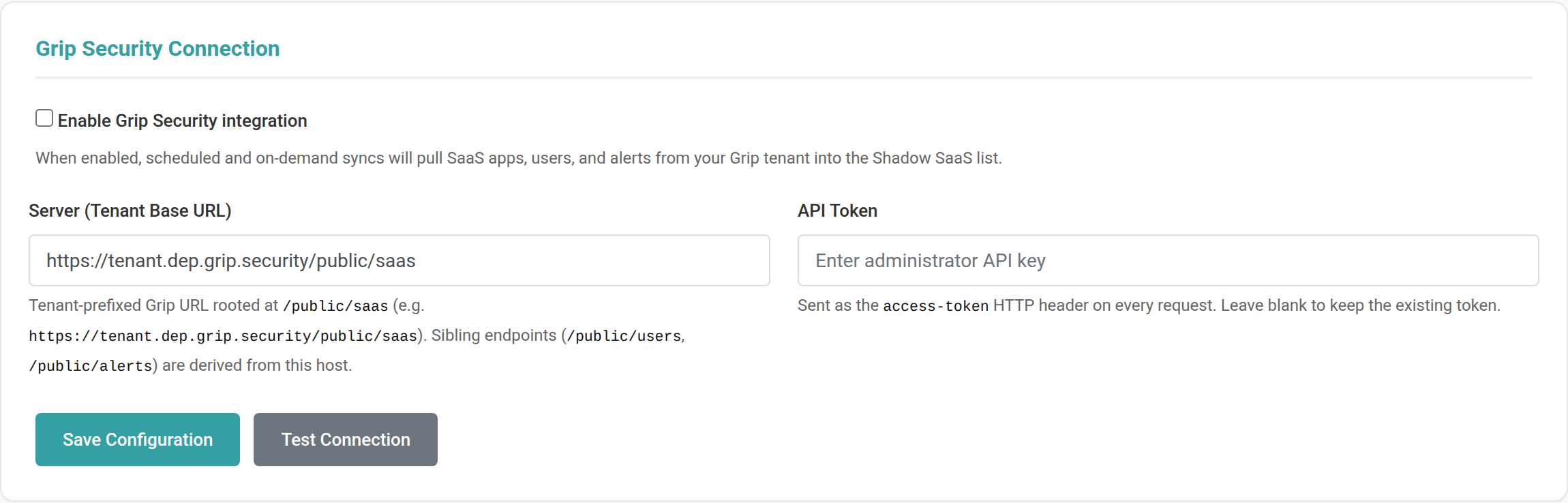
It is configured by an administrator at → on the Grip tab. Grip is one of two Shadow SaaS providers (the other is Hero); only one can be enabled at a time.
Connecting Grip (step by step)
- In Grip, create an API token and note your tenant's base URL (it ends in
/public/saas, for examplehttps://tenant.dep.grip.security/public/saas). - In the platform, go to → and find the Grip Security Connection card.
- Tick Enable Grip Security integration.
- Paste your tenant URL into Server (Tenant Base URL) and your token into API Token.
- Click Save Configuration, then click Test Connection to confirm. A success message looks like "Connected to Grip — sample returned 1 record(s)".
Keeping it up to date automatically
Use the shared Scheduled Rehydration card (below the provider tabs) to refresh the enabled provider's data on a schedule. Tick Enable scheduled rehydration and enter a Schedule (cron expression) — for example 0 2 * * * for daily at 2 AM; the card shows a plain-English summary of what you typed. The job is installed into the system scheduler automatically (no manual server steps) and survives restarts. You can also click Run Now to refresh immediately. The same schedule serves whichever provider (Grip or Hero) is currently enabled.
What you'll see afterward
Discovered apps appear on the page as Pending entries with a risk score (shown on a 1–5 scale), category, and number of users. From there you can Allow an app (which begins onboarding it as a vendor), Deny it (mark it unsanctioned, and optionally block it in Zscaler), or Dismiss it.
Live vs. Local (cached) data source New in 2.6.2
On the Grip Security Connection card, Data source controls where Grip pages read from:
- Live — calls the Grip API for each page. Always current, but heavier on the API.
- Local (Hydrated/cached) — serves from the copy of Grip data held in the platform's database. Lighter on the API. In Local mode each sync fully refreshes that copy; between syncs pages serve from the snapshot rather than calling Grip.
Watching and controlling a sync New in 2.6.2
While a sync is running, the Last Sync card shows a live progress readout — “Hydrating per-app rosters — NN% (D / T apps)” — above a Stop Sync button that cooperatively cancels the run. To wipe the locally-served Grip data entirely, use Truncate Data on the same card: it clears the Grip mirror tables, the Grip rows on the Shadow SaaS list, and the Grip telemetry stamped on vendor records (the SaaS Data tab). Your sync history is kept, and the next sync re-hydrates everything from Grip.
SecurityScorecard (SSC) rating New in 2.6.2
When Grip is connected, an SSC column shows each app or vendor's SecurityScorecard letter grade (A–F) on the Shadow SaaS list and on the vendor SRS list, and on the vendor's SaaS Data tab. It appears only while Grip is enabled.
The vendor “SaaS Data” tab New in 2.6.2
When a vendor matches a Grip-discovered app, a read-only SaaS Data tab appears on that vendor's page, surfacing the Grip telemetry gathered during sync without leaving the vendor: First Discovered, Active Accounts (a link into the affected-users list), Last Known Usage, app classification, the Security Scorecard grade, category, AI depth, compliance signals, and SAML/MFA support.
Grip breach alerts New in 2.6.2
Grip can also feed security incidents into the platform. Tick Flow Grip breach information into Breach / Cyber Alerts on the connection card and Grip “Security Incident Detected” alerts are written into your Breach / Cyber Alerts list on each sync. (This also requires the Breach/Cyber Alerts feature to be enabled under → .)
Hero Shadow SaaS Integration New in 2.6.2
HERO Security is an alternative Shadow SaaS provider. Instead of Grip, you can connect a HERO account and the platform pulls the vendors HERO discovers — with their status, a risk score, the most-active contact, and a user count — into the same Shadow SaaS list. Grip and Hero are mutually exclusive: enabling Hero automatically disables Grip (and vice-versa), so the list is always fed by exactly one provider.
It is configured by an administrator at → on the Hero tab.
Connecting Hero (step by step)
- In the HERO admin panel, create an API client and copy its Client ID and Client Secret (the secret is shown only once).
- In the platform, go to → and open the Hero tab to find the HERO Security Connection card.
- Tick Enable HERO Security integration (this disables Grip).
- Leave Server (Base URL) as
https://api.herosecurity.ai/stableunless told otherwise, and paste your Client ID and Client Secret. - Click Save Configuration, then Test Connection. A success message looks like "Connected to HERO — sample returned 1 record(s)".
What you'll see afterward
HERO vendors appear on the page the same way Grip apps do — as Pending entries you can Allow, Deny, or Dismiss. For each vendor the platform records:
- Risk Score (1–5) — derived from the most severe open security issue HERO has for that vendor (critical = 5 down to low = 2; vendors with no open issues are left unscored). This is the same 1–5 scale Grip uses.
- Relationship Manager — the vendor's most-active observed contact (the user with the highest email activity).
- Number of Users — how many users were observed interacting with the vendor.
- Risk Type — a summary of HERO's engagement signals (authorization, activity, commercial engagement) and the open-issue count.
Some columns that other sources provide (application category, MFA support, breach history, traffic volumes, file-sharing) are not part of the HERO API, so they remain blank for Hero rows.
Zscaler Blocking Integration New in 2.6.2
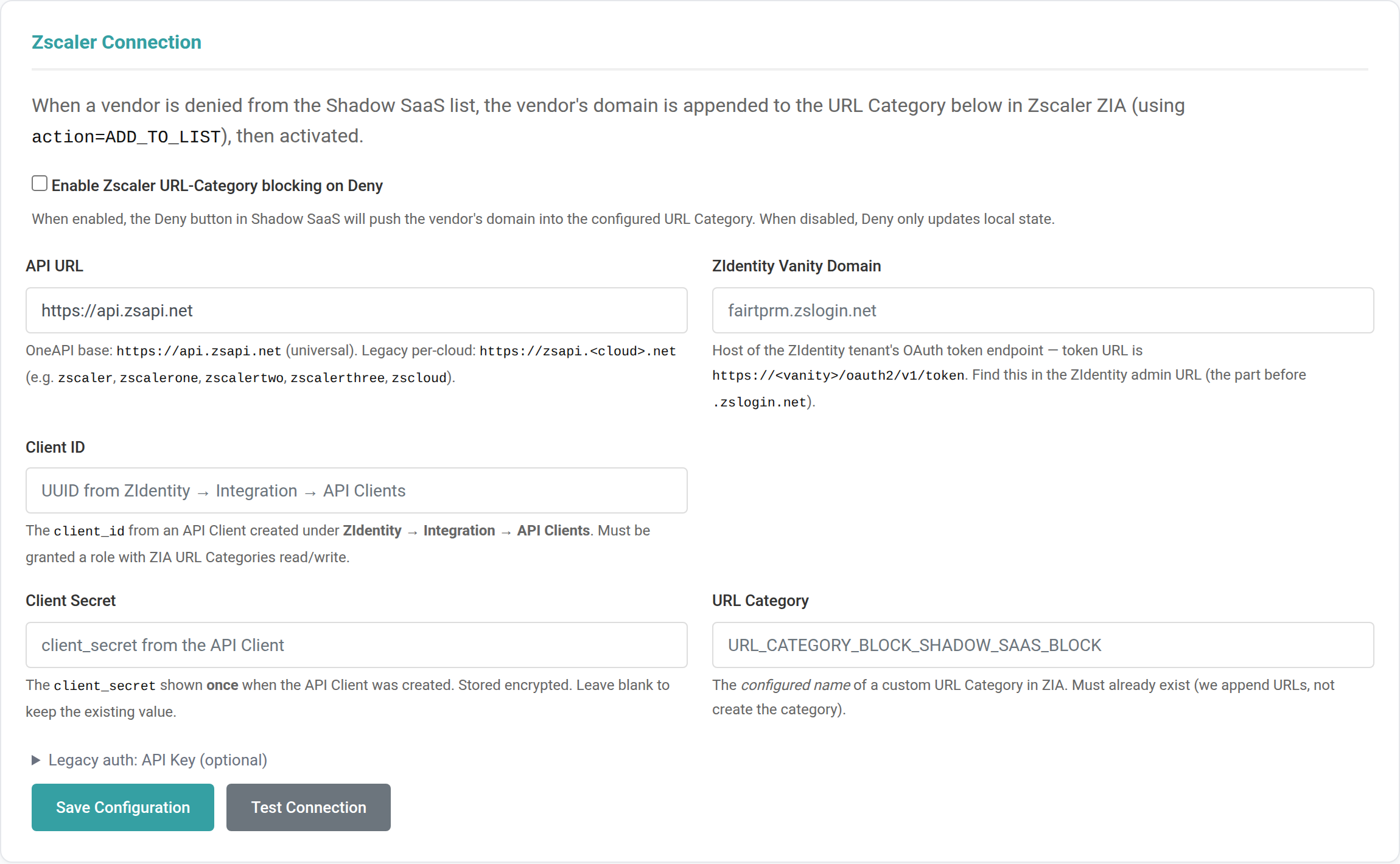
Zscaler is a web-security service that can block access to websites. With this integration, when you Deny an unsanctioned app on the Shadow SaaS page, the platform can automatically add that app's web domain to a blocking list in your Zscaler account — so people can no longer reach it. Clicking Allow later removes the block.
It is configured by an administrator at → , on the Zscaler Connection card.
Connecting Zscaler (step by step)
- In Zscaler (ZIdentity), create an API Client and copy its Client ID and Client Secret. Note your vanity domain (the part before
.zslogin.net). - In ZIA, create (or pick) a custom URL Category that the blocked domains will be added to, and note its exact name.
- In the platform's Zscaler Connection card, tick Enable Zscaler URL-Category blocking on Deny.
- Fill in API URL (default
https://api.zsapi.net), ZIdentity Vanity Domain, Client ID, Client Secret, and the URL Category name. - Click Save Configuration, then Test Connection to confirm the credentials work.
Breach / Cyber Alerts New in 2.6.2
The Breach / Cyber Alerts page collects breach and threat-intelligence signals for your vendor supply chain in one place. Open it from the sidebar under → ; a red badge shows the number of new alerts.
Where alerts come from
Alerts include breaches surfaced by the AI Breach & OSINT scanners (see AI Integration) and, when enabled, security incidents from Grip. Each alert shows the affected entity, users potentially impacted, technology, and when it was detected. An incident on a SaaS app you have not onboarded as a vendor is tagged “Shadow SaaS” with the number of users potentially impacted; if that app is later onboarded, future incidents attach to the vendor instead.
Who was affected
For a Grip-sourced incident, the impacted-user count links to an affected-users list for that app. The list is paged and filterable (for example by authentication method), and has a Search by name or email box to find a specific person. Because the roster is stored encrypted, the search runs over the decrypted data in the application, so it works the same as sorting and paging.
Working through alerts in bulk
Administrators and Cyber TPRM users get a multi-select toolbar on the list. Tick the alerts you want (or use Check all) and apply an action to all of them at once:
- Acknowledge — mark the alerts as seen.
- False Positive — mark them as not a real issue.
- Delete — remove them. Administrators only, and confirmed before it runs.
Admin Portal: General Settings
The Admin Portal is accessible via in the sidebar (admin users only) or the Admin link in the top bar.
General Settings include: application name, company name, support email, and system-wide configuration options.
Branding & Theme
Customize the platform appearance: upload your company logo, set sidebar colors, header colors, button colors, and navigation width. Navigate to → .
User Management
Manage user accounts and group assignments. Navigate to → .
Assigning Users to ACL Groups
- Navigate to → .
- Find the user in the list.
- Click the Groups button next to the user's name.
- A modal will appear showing all available groups with checkboxes. Check the groups you want to assign (e.g., Cyber GRC, Administrator).
- Click Save Changes.
Beyond assigning the shipped groups, super administrators can build their own groups with a custom permission set — see ACL Groups & Custom Access Control.
ACL Groups & Custom Access Control New in 2.6.2
The platform ships with seven built-in groups (administrator, cyber_tprm, procurement, stakeholder, auditor, cyber_grc, grc_contributors). In v2.6.2, super administrators can also create their own groups and tune exactly what each one can do. Open → → . Any administrator can view this page; only super administrators see the create, edit, and permission controls.
The shipped groups are protected
The seven built-in groups are marked System. They cannot be deleted or renamed, and their permissions are read-only — you can open View Permissions to see exactly what they grant, but not change them. This keeps the defaults everyone relies on stable.
Creating a custom group
- Click + Create Group.
- Enter a Group Name (machine) (lowercase letters, numbers, underscores — this is fixed once created), a friendly Display Name, and a Description.
- Optionally use Copy permissions from to clone an existing group (including a System group) as your starting point — then refine it. Leave it on — Start with no permissions — to build up from nothing.
- Click Create Group.
Tuning the permission matrix
Open a custom group's Permissions. Permissions are grouped by module (Vendor Onboarding, FAIR Analysis, Assessments, Security Rating (SRS), Annual Reviews, GRC, and Other). Each permission is tagged as either Read or Read/Write, and each module has three one-click presets:
- Read — grants only the view/list/export permissions for that module.
- Read & Write — grants everything (view and change).
- None — clears the module.
Click Save Permissions when done. Granting Read never implies write access — the ability to change something is always a separate, explicit grant. All group changes are audit-logged.
Assessment Template Builder New in 2.6.2
The Template Builder ( → ) is where administrators and Cyber TPRM users design assessment and onboarding questionnaires. Use + Add Section and + Add Question to build a template. A few v2.6.2 additions are worth calling out.
Question types and field mapping
A question's Question Type now includes Phone, VAT Number, Checkboxes, and Button Group (Multi) in addition to the familiar text, dropdown, and radio types (see Custom Onboarding Fields for what each captures). A question's Field Name maps its answer onto a vendor field; pick a built-in field or a custom one you registered under → .
Certificate Upload Instructions
On a template you can fill in Certificate Upload Instructions — the text shown to a vendor in the “Do you have a Certificate?” prompt. This lets a template invite any certificate (SOC 2 Type 2, ISO 27001, and so on), not just ISO 27001. If you leave it blank, a generic message is shown.
Role-based visibility on onboarding templates
For onboarding templates, custom sections and questions carry Visible to Roles and Visible and Editable Roles controls, so you decide who can see and edit each custom field. See Custom Onboarding Fields & the Custom Data Tab.
Deactivated templates are hidden by default
The template list shows only active templates. If any have been deactivated, a Show Deactivated (N) button reveals them (and toggles back to Hide Deactivated (N)), keeping a long-lived tenant's list focused on the templates actually in use without losing access to retired ones.
Email Configuration
Configure SMTP settings for sending email notifications. Navigate to → . Settings include SMTP host, port, username, password, encryption method (TLS/SSL), and sender address.
SAML / SSO
Configure Single Sign-On using SAML 2.0. Navigate to → . This allows users to log in using your organization's identity provider (Okta, Azure AD, etc.).
- Tick Enable SAML 2.0.
- Fill in every required Identity Provider field (IdP Entity ID, IdP Single Sign-On URL, IdP X.509 Certificate) and Service Provider field (SP Entity ID, SP ACS URL). SSO only activates once all of these are filled in — a partially completed form stays disabled.
- Click Save.
Running local login and SSO together
By default, enabling SSO does not turn off the local username/password form — the login page shows a Sign in with SSO button and a local sign-in option, so both work side by side. The behaviour is controlled by a single local-login switch:
| Mode | What users see |
|---|---|
| Local login enabled (default) | SSO button and the username/password form. Use this to run both at once. |
| Local login disabled (SSO-only) | SSO is the only path for normal users. The designated break-glass admin account can still sign in locally, so a broken identity provider can never lock everyone out. |
If SAML is not actually configured, the switch is ignored and local login always stays available (anti-lockout safety net).
Break-glass: allow SAML and local login together (config file) New in 2.6.2
The local-login switch can be set two ways. The config-file setting, when present, takes precedence over the database value — a break-glass control that needs no database access, so you can always restore local login even if SSO is misbehaving.
| Where | How |
|---|---|
| Admin → SAML page | In the Connection Settings card, tick or untick Allow local username/password login (in addition to SSO) and click Save SAML Configuration. This writes the local_login_enabled setting (enabled by default) — no SQL needed. |
| Config file (wins if set) | In config/config.php, under the auth block, set 'local_login_enabled' => true to keep local login always available (both local + SSO), or false for SSO-only. This overrides the toggle above; while it is set, the checkbox on the SAML page is shown read-only. Remove the line to manage it from the UI again. Restart the container after editing config.php. |
To run both SAML and local login with no database changes, configure SAML as above and add this to the auth block of config/config.php, then restart the container:
'auth' => [
    // ...
    // Break-glass: true = local login always available alongside SSO;
    // false = SSO-only (break-glass admin can still log in locally).
    'local_login_enabled' => true,
],
AI Integration
Enable AI-powered features including assessment note refinement, control suggestions, vendor commentary, AI-assisted FAIR risk analysis, and report language assistance. Navigate to → to choose a provider and enter its API key. Only one platform is active at a time.
Supported AI platforms:
- Anthropic (Claude) New in 2.6.2 — connects directly to Claude's native API (e.g.
claude-opus-4-8). Paste your Anthropic API key; the endpoint defaults to the standard Messages URL. Supports live web search, so Breach Alerts and OSINT scans are grounded on current, cited sources. - OpenAI (ChatGPT) New in 2.6.2 — connects directly to OpenAI (e.g.
gpt-4o). Paste your OpenAI API key. For Breach & OSINT scans it uses a web-search-capable model (defaultgpt-4o-search-preview) so those scans are grounded on live sources. - OpenWebUI — JWT bearer token against an OpenAI-compatible endpoint.
- LibreChat — API-key auth, agent-based; the agent manages its own model and sampling.
- Custom — paste a curl-style headers + body template for any other OpenAI-compatible (or orchestrator) endpoint.
Choosing & loading a model: after entering and saving a key, click Load Models on that platform's card to fetch its available model list (OpenWebUI / LibreChat / OpenAI). For Anthropic, type the model name directly (e.g. claude-opus-4-8).
Breach Alerts grounding: the Breach & OSINT scanners need a provider that can search the web. Anthropic (Claude) and OpenAI (ChatGPT) both ground natively; OpenWebUI / LibreChat ground only if the underlying agent has browsing; the Custom platform grounds only when a Web Search URL is configured.
The active AI provider also powers automatic translation of assessment questions (see Changing Your Language).
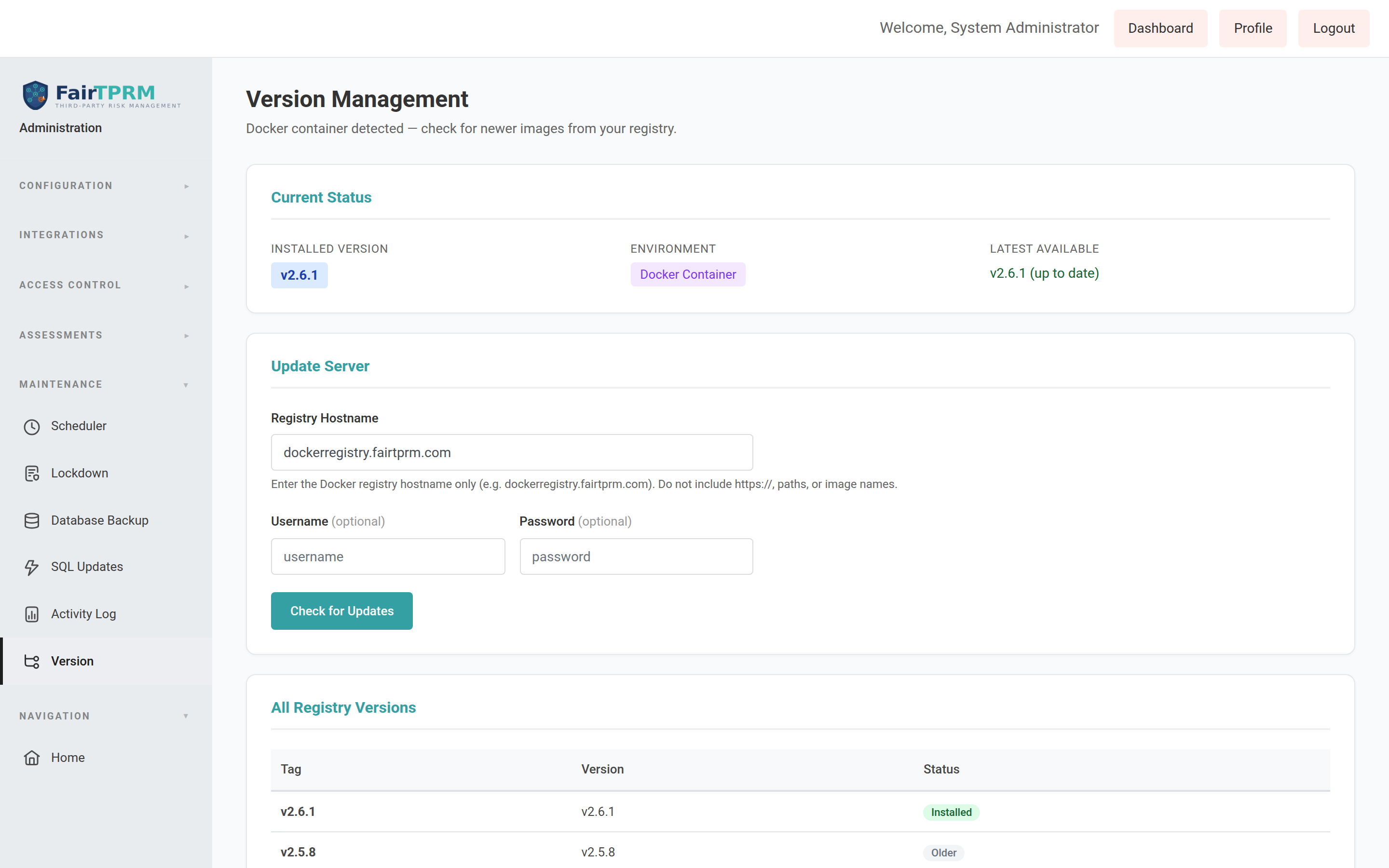
Updating the Platform New in 2.6.2
Administrators can check for and apply new versions from inside the platform. Navigate to → .
- The Current Status card shows your Installed Version and whether a newer one is available.
- Confirm the Registry Hostname is correct (your image registry), then click Check for Updates.
- If a newer version is listed, follow the on-screen Upgrade action to apply it.
Frequently Asked Questions
Type a keyword below to instantly filter the questions — for example language, VID, onboard, Grip, or password.
Can users sign in with both SSO and a local password at the same time?SSO
Yes. Enabling SAML/SSO does not turn off local login by default — the login page shows a Sign in with SSO button and a local username/password option together. You control this with the Allow local username/password login checkbox on the → page (leave it ticked to run both; untick it for SSO-only, where the break-glass admin can still log in locally). For a no-database break-glass control, the same setting can be forced in config/config.php via 'local_login_enabled' => true, which overrides the checkbox. See SAML / SSO.
SSO is misconfigured and no one can log in. How do I get back in?SSO
Use the break-glass control: in config/config.php, under the auth block, set 'local_login_enabled' => true and restart the container. This re-enables the local username/password form regardless of the database setting, so you can sign in and fix the SAML configuration. See SAML / SSO.
How do I change the language of the platform?Language
Click Profile (top-right), open the Language Preference card, choose your language, and click Update Language. This only changes your own screen. See Changing Your Language.
Which languages are supported?Language
English, Spanish, Italian, Ukrainian, Chinese (Simplified), Hindi, French, and Portuguese. Your administrator decides which of these appear in your list; English is always available.
I changed my language but some text is still in English. Why?Language
A few different things can stay in English even after you switch language:
- Interface text that has not been translated yet. Menus, buttons, and labels are translated wherever a translation exists for your language. If a particular string has not been translated into your language yet, it falls back to English rather than showing a blank — so you may see the occasional English label.
- Anything that was typed in. Content you or your vendors enter — vendor names, notes, uploaded document names, free-text answers — is shown exactly as it was written, in whatever language that was.
- Assessment questions without an AI provider. Vendor assessment question text is translated automatically only when your administrator has configured an AI provider; without one, questions stay in the language they were authored in. Stored answer values always remain in English so scoring stays consistent.
- Emails and some third-party components are not controlled by your language setting.
If you see an interface label that should be translated but is not, let your administrator know so the missing text can be added.
Why can't I submit my vendor for review?Onboarding
A vendor can only be submitted once it has completed Procurement Onboarding (set to Yes) and has a valid Vendor ID (VID) of 4–8 digits. Open the vendor, fill in both on the Vendor Information card, save, then click Submit for Review. See Vendor Onboarding and Troubleshooting.
What is a Vendor ID (VID) and where do I get it?Onboarding
The VID is a 4–8 digit number assigned to the vendor by your procurement system when the vendor is onboarded. It links the vendor here to your procurement and finance records. If you don't have one, the vendor has not finished procurement onboarding yet.
The field on my vendor says "VSU Onboarded", but the guide says "Procurement Onboarding". Which is it?Onboarding
They are the same field. It was renamed to the clearer "Procurement Onboarding" in v2.6.2. If your screen still shows "VSU Onboarded", your instance hasn't been upgraded to the latest v2.6.2 image yet — the behaviour is identical.
What does "AI Review" mean for a vendor?AI Review
It is a separate review status for vendors whose services use AI, so they can be tracked apart from ordinary reviews. A Cyber TPRM user or admin moves a vendor into it with the Force AI Review link. See AI Review for Vendors.
I don't see the "Force AI Review" link. Why?AI Review
It only appears when you are editing the vendor with approval permission, the vendor's Services Use AI field is Yes, and the vendor is not already in AI Review.
What is the Procurement Cyber Status page?Procurement
A plain-language page (TPRM → Procurement → Cyber Status) where procurement can see which vendors the cyber team is reviewing and read dated updates the cyber team posts. See Procurement Cyber Status.
How does procurement get update emails?Procurement
An administrator turns on the Procurement Update Digest under Admin → Email Settings and adds recipient addresses. It is emailed weekly (by default Mondays at 7:00 AM) and can also be sent on demand.
What is Grip and what does it do here?Integrations
Grip Security discovers SaaS apps used across your organization. When connected (Admin → Shadow SaaS), the platform automatically pulls those apps, their user counts, risk scores, and alerts into your Shadow SaaS list. See Grip Shadow SaaS Integration.
What's the difference between the Grip and Hero integrations?Integrations
Both feed the same Shadow SaaS list from a third-party discovery service — Grip Security or HERO Security — and both share the Zscaler blocking and the Scheduled Rehydration job. They are mutually exclusive: enabling one disables the other, so you run whichever provider your organization uses. See Hero Shadow SaaS Integration.
My Grip "Test Connection" failed. What should I check?Integrations
Confirm the Server (Tenant Base URL) ends in /public/saas, that the API Token is current, and that your server can reach the Grip endpoint. A token error reports "Unauthorized — token rejected"; a URL error reports "Endpoint not found — check base URL".
What does the Zscaler integration do?Integrations
When you Deny an unsanctioned app, the platform can add its web domain to a blocking URL Category in your Zscaler account so people can't reach it. Clicking Allow later removes the block. See Zscaler Blocking Integration.
What's the difference between Allow, Deny, and Dismiss on a Shadow SaaS app?Integrations
Allow begins onboarding the app as a vendor; Deny marks it unsanctioned (and can block it in Zscaler); Dismiss hides it from the list. Dismissed apps stay dismissed even after future syncs.
Who can see the GRC module?Access
Users in the Administrator, Cyber GRC, or Auditor groups. If you don't see it, ask your administrator to add you to one of these groups. See User Roles & Permissions.
How do I turn on two-factor authentication (2FA)?Account
Open Profile and use the Two-Factor Authentication (TOTP) card to enable it with an authenticator app such as Google Authenticator or Microsoft Authenticator.
Can I save or print this documentation?General
Yes. Click Download PDF at the top of this page. It produces a formatted document with a cover page, table of contents, and page numbers.
How do I know which version I'm running?General
Administrators can check Admin → Version. This guide describes v2.6.2. See Updating the Platform.
No questions match your search. Try a different keyword.
Troubleshooting
Why onboarding through procurement matters (the VID & Procurement Onboarding rule)
This is the single most common thing that stops a vendor from moving forward, so it is worth understanding. The platform will not let a vendor be submitted for cyber review until two procurement facts are recorded on the vendor:
- Procurement Onboarding = Yes — confirmation that the vendor has been set up and vetted through your organization's procurement process.
- A valid Vendor ID (VID) — the 4–8 digit number procurement assigns to the vendor.
Why enforce this? Because the VID is the shared key that links this vendor to procurement, finance, and contract records. If the cyber team reviewed and approved a vendor that procurement had never onboarded, you would end up with duplicate or "ghost" vendors, security work that can't be tied back to a real purchase order, and reports that don't reconcile. Requiring procurement onboarding first keeps the security review and the procurement record pointing at the same, real vendor.
Common issues and how to resolve them
| Symptom | Likely cause & fix |
|---|---|
| "Cannot submit: Vendor must be onboarded at VSU before submission…" | The Procurement Onboarding field isn't set to Yes. Set it to Yes on the Vendor Information card and save. |
| "Cannot submit: A valid Vendor ID (VID) is required (4-8 digits)…" | The Vendor ID is missing or not 4–8 digits. Enter a valid VID from procurement. |
| "Only draft requests can be submitted for review." | The vendor is already past Draft. You can only submit a request that is still in Draft status. |
| The Submit for Review button isn't visible | It only appears for vendors in Draft when you have edit permission. |
| "AI Review can only be forced for vendors whose services use AI." | Set Services Use AI to Yes on the vendor before forcing AI Review. |
| I can't see the GRC module in the sidebar | You need to be in the Administrator, Cyber GRC, or Auditor group. Ask an administrator. |
| My language change didn't stick | Make sure you clicked Update Language (not just changed the drop-down), and that the language is enabled by your administrator. |
| Grip "Test Connection" fails | Check the base URL ends in /public/saas and the API token is valid and current. |
| Denying a Shadow SaaS app didn't block it in Zscaler | Zscaler blocking must be enabled and configured, and the named URL Category must already exist in Zscaler. |
| Procurement didn't receive the digest email | Confirm the digest is enabled with recipients under Admin → Email Settings, and that Admin → Email SMTP settings are correct. |
| The Upgrade button says "Could not fetch manifest" | A registry/network issue reaching your image registry. Verify the Registry Hostname under Admin → Version and that the host can reach it. |
Glossary
| Term | Definition |
|---|---|
| ACL | Access Control List — defines what actions users in a group can perform |
| Action Plan | A per-vendor tab for scheduling follow-up actions (contact, send assessment, force annual review) with due dates, owners, and status notes; fired daily by the Vendor Remediation Schedule job |
| AI Review | A vendor onboarding status for vendors whose services use AI, tracked separately during review |
| Assessment | A point-in-time compliance evaluation using the unified questionnaire |
| CIS Controls | Center for Internet Security Controls — a prioritized set of security best practices |
| CMMC | Cybersecurity Maturity Model Certification — required for US Department of Defense contractors |
| Conformity Status | Whether a requirement is Conforming, Partial, Non-Conforming, Not Applicable, or Not Assessed |
| Control | A specific security measure implemented to meet compliance requirements |
| Crosswalk | A mapping between two frameworks showing which requirements overlap |
| CSF | NIST Cybersecurity Framework — a widely-used cybersecurity risk management framework |
| Custom Field / Custom Data | An organization-specific onboarding field with no standard vendor column; captured per vendor and shown on the vendor's Custom Data tab, with per-role visibility (see Custom Onboarding Fields) |
| Domain | A category of security questions (e.g., Governance, Identity & Access Management) |
| Evidence | Documents, screenshots, or files that prove a compliance claim |
| FAIR | Factor Analysis of Information Risk — a quantitative risk analysis methodology |
| FairScore | The platform's overall maturity score calculated from assessment responses |
| Finding | An issue discovered during an audit (nonconformity, observation, opportunity, or strength) |
| Framework | A compliance standard like SOC 2, ISO 27001, PCI DSS, etc. |
| GRC | Governance, Risk, and Compliance |
| Grip | Grip Security — a service that discovers SaaS apps in use; can feed the Shadow SaaS list (see Grip Shadow SaaS Integration) |
| Hero | HERO Security — an alternative Shadow SaaS discovery service that can feed the Shadow SaaS list (mutually exclusive with Grip; see Hero Shadow SaaS Integration) |
| HIPAA | Health Insurance Portability and Accountability Act — US healthcare data protection law |
| ISO 27001 | International standard for information security management systems |
| Maturity Rating | A 1-4 score indicating how mature a security practice is (1=Ad Hoc, 4=Optimized) |
| NIST 800-171 | NIST guidelines for protecting Controlled Unclassified Information (CUI) |
| PCI DSS | Payment Card Industry Data Security Standard |
| PII | Personally Identifiable Information (names, emails, addresses, etc.) |
| Procurement Onboarding | Confirmation (Yes/No) that a vendor has been set up through your procurement process; required, along with a valid VID, before a vendor can be submitted for review. (Labelled "VSU Onboarded" on instances upgraded from earlier releases.) |
| Requirement | A specific clause or control objective within a compliance framework |
| SaaS | Software as a Service — cloud applications accessed over the web |
| Shadow SaaS | SaaS apps used in the organization that were never formally approved or assessed |
| SOC 2 | Service Organization Control Type 2 — trust services criteria for service organizations |
| SPII | Sensitive PII (SSNs, financial data, health records) |
| SRS | Security Risk Scorecard — the platform's external security rating/grade for a vendor |
| SSC (SecurityScorecard) | A third-party security letter-grade (A–F) shown for Grip-discovered apps and vendors when Grip is connected |
| Subprocessor | A vendor's own downstream vendor; the same subprocessor shared across several of your vendors indicates supply-chain concentration (see 4th Party Risk) |
| TPRM | Third Party Risk Management |
| Unified Question | A single security question that maps to requirements across multiple frameworks |
| VID | Vendor ID — a 4–8 digit identifier assigned to a vendor by your procurement system |
| VSU | The procurement/vendor-setup function; "onboarded at VSU" means the vendor has completed Procurement Onboarding |
| Zscaler | A web-security service that can block website domains; integrated so unsanctioned apps can be blocked on Deny (see Zscaler Blocking) |